When you purchase through links on our site, we may earn an affiliate commission. Here’s how it works.
How to Transfer Files Canon T7 to Phone: 3 Reliable Methods
You just captured some great shots on your Canon EOS Rebel T7, and now you want them on your phone for editing or sharing. The good news is that you have several reliable ways to transfer files Canon T7 to phone, whether you’re using an iPhone or Android device. This guide covers every method, from wireless transfer to physical connections, with step-by-step instructions for each.
Method 1: WiFi Transfer With Canon Camera Connect App
The Canon T7 has built-in WiFi, making wireless transfer the most convenient option for most people. Canon’s free Camera Connect app handles the connection between your camera and phone.
Initial Setup (One-Time Process)
Step 1: Download the Canon Camera Connect app from the App Store (iPhone) or Google Play Store (Android). It’s free.
Step 2: On your Canon T7, press the MENU button and navigate to the Wrench (Setup) menu. Find the WiFi/NFC option and select Enable.
Step 3: Select “Connect to smartphone” from the WiFi function menu. The camera will display its network name (SSID) and password.
Step 4: On your phone, go to WiFi settings and connect to the camera’s WiFi network using the displayed password.
Step 5: Open the Canon Camera Connect app. It should detect your camera automatically. Tap to connect and confirm the pairing on the camera’s LCD screen.
Transferring Photos After Setup
Once paired, the process is straightforward. Open the Camera Connect app, tap “Images on camera,” and browse your photos. Select the ones you want, tap Download, and they’ll transfer to your phone’s camera roll.
You can transfer individual photos, select multiple images, or download entire folders. Full-resolution JPEGs transfer in a few seconds each. RAW files (if you’ve set up your T7 to shoot RAW) take longer due to their larger file sizes.
WiFi Transfer Tips
WiFi transfer drains your camera’s battery faster than normal use. If you’re planning a big transfer session, make sure you have a full charge or keep the camera plugged into USB power.
The T7’s WiFi is 2.4GHz only, and transfer speeds are modest, roughly 3-5 MB per second. For a handful of photos, this is fine. For hundreds of images, consider one of the physical methods below.
We walk through Canon EOS Rebel T7 lens step by step in a separate post.
Method 2: USB OTG Cable (Android Only)
If you have an Android phone that supports USB OTG (On-The-Go), you can connect your Canon T7 directly to your phone with a cable. This method is faster than WiFi and doesn’t drain your camera battery as quickly.
What You Need
You’ll need the USB cable that came with your Canon T7 (Mini-USB to USB-A) and a USB OTG adapter for your phone. If your phone has a USB-C port, get a USB-A to USB-C OTG adapter. These are inexpensive and widely available.
How to Connect
Step 1: Turn on your Canon T7.
Step 2: Connect the Mini-USB end of the cable to the camera and the USB-A end to the OTG adapter.
Step 3: Plug the OTG adapter into your phone.
Step 4: Your phone should recognize the camera as an external storage device. You may get a notification asking what to do, select “File Manager” or “Photos” depending on your phone.
Step 5: Navigate to the DCIM folder on the camera and copy the photos you want to your phone’s internal storage.
Method 3: SD Card Reader
This is the fastest and most reliable method for transferring large numbers of files. It works with both iPhones and Android devices.
For iPhone
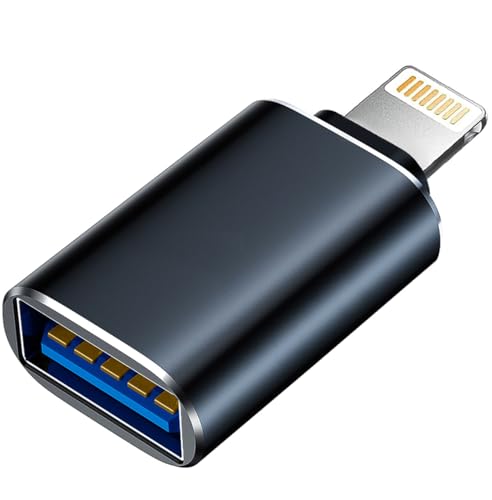
Apple sells a Lightning to SD Card Reader (for older iPhones) and a USB-C to SD Card Reader (for iPhone 15 and newer). Insert your T7’s SD card into the reader, plug it into your iPhone, and the Photos app will automatically open with an Import option. Select your photos and tap Import.
For Android
Many Android phones can use a USB-C SD card reader directly. Insert the SD card, and your phone’s file manager will show it as external storage. You can also find compact readers designed specifically for phones with USB-C or Micro-USB ports.
Why This Method Is Often Best
SD card readers offer the fastest transfer speeds, typically 80-100 MB per second with a good reader and card. You can transfer hundreds of photos in minutes rather than the hour it might take over WiFi. There’s no camera battery drain since the camera isn’t involved. And it’s the most reliable method with no wireless connectivity issues to troubleshoot.
You might also want to read our Canon Rebel T7i guide for the full picture.
Transferring to iPad or Tablet
All three methods above work with tablets too. The Canon Camera Connect app works identically on iPads and Android tablets. USB OTG works with Android tablets that support it. And SD card readers are available for all iPad models. Apple’s adapters work smoothly.
For iPad specifically, the Files app and Photos app both handle imports cleanly. If you’re doing photo editing on an iPad, importing through Files gives you more control over where the images are stored.
Troubleshooting Common Transfer Issues
Even with straightforward methods, you might hit a snag. Here are the most common problems and how to fix them:
Camera Connect app can’t find the camera: Make sure your phone is connected to the camera’s WiFi network, not your home WiFi. The camera creates its own network, your phone needs to be on that network specifically.
WiFi connection drops during transfer: Disable mobile data on your phone during transfer. Some phones try to switch away from WiFi networks that don’t have internet access, which is exactly what the camera’s network looks like.
Phone doesn’t recognize USB connection: Not all Android phones support USB OTG. Check your phone’s specifications to confirm compatibility. Also try a different cable, cheap USB cables sometimes lack the data pins needed for file transfer.
SD card reader not working: Make sure the SD card is inserted correctly (contacts facing the right direction). Try removing and reinserting the card. If using an iPhone, check that you’re using an Apple-certified or MFi-certified reader.
Photos appear low resolution after transfer: In the Camera Connect app, check the transfer size setting. It may be set to resize images during transfer. Change this to “Original” to transfer full-resolution files.
Which Method Should You Use?
Here’s a quick decision guide:
Transferring 1-20 photos quickly: WiFi via Canon Camera Connect is the most convenient. No extra hardware needed.
Transferring a full day’s shoot (50+ photos): Use an SD card reader for speed and reliability.
Regular transfers without extra accessories: WiFi works well for everyday use once you’ve completed the initial setup.
No WiFi working and no card reader handy: USB OTG is your backup option if you have an Android phone and the right cable.
In 2026, getting photos off your Canon T7 and onto your phone is easier than ever. Pick the method that fits your workflow, and you’ll have your images ready to edit and share within minutes.