Trying to connect Canon 20D to computer and running into trouble? You’re not alone. The Canon EOS 20D is a classic DSLR from 2004, and while it still takes solid photos, getting those images onto a modern computer requires working around some vintage technology. Here’s everything you need to know to transfer your files quickly and reliably.
Connect Canon 20D to Computer via USB
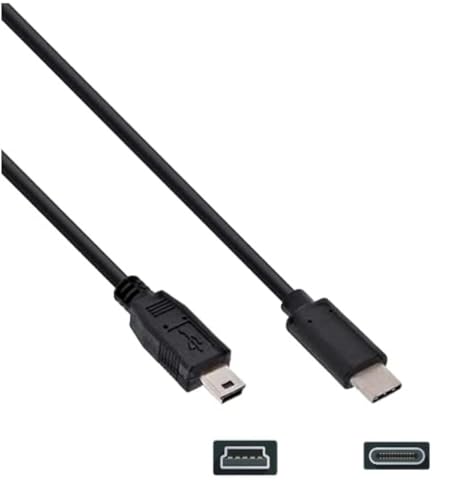
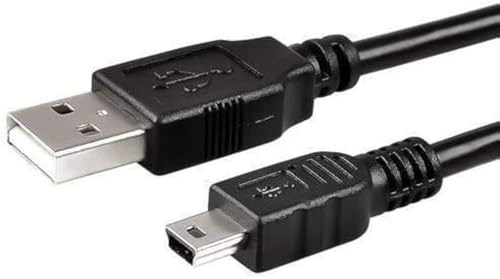
The Canon 20D uses a USB Mini-B connection, that’s the small, trapezoidal USB connector that was standard on cameras and other devices in the mid-2000s. The camera end takes the Mini-B plug, and the computer end uses a standard USB-A plug.
Step-by-Step USB Connection
- Get the right cable. You need a USB 2.0 Mini-B to USB-A cable. Canon originally included one with the camera, but if you’ve lost it, generic USB Mini-B cables work fine and cost a few dollars online. Make sure you’re buying USB Mini-B (5-pin, trapezoidal shape), not Micro-USB, they look similar but are different connectors.
- Turn off the camera. Always connect the cable with the camera powered off to prevent data corruption.
- Connect the cable. Plug the Mini-B end into the USB port on the Canon 20D (located under the rubber flap on the left side of the camera body). Plug the USB-A end into your computer.
- Turn on the camera. The camera should be recognized by your computer as a removable device or digital camera.
- Transfer files. On Windows, the camera may appear in File Explorer under “This PC” as a removable drive or portable device. On macOS, the Image Capture app or Photos app should detect the camera automatically. Navigate to the DCIM folder on the camera’s CF card to find your image files.
USB-A Port Issues on Modern Computers
Many modern laptops, especially MacBooks and ultrabooks, have eliminated USB-A ports in favor of USB-C. If your computer only has USB-C ports, you’ll need a USB-C to USB-A adapter or a USB-C hub with USB-A ports. These are inexpensive (under $15) and widely available. Any reputable USB-C to USB-A adapter will work, the Canon 20D uses USB 2.0 speeds, so you don’t need a high-spec adapter.
Using a Card Reader Instead (Recommended)
For most users, a CompactFlash card reader is actually easier and faster than connecting the camera directly via USB. The Canon 20D uses CompactFlash (CF) Type I or Type II cards, and dedicated card readers offer several advantages over the USB cable method.
Faster transfers: A good CF card reader connects via USB 3.0, which transfers files significantly faster than the camera’s USB 2.0 connection. This makes a noticeable difference when transferring hundreds of RAW files.
No battery drain: Using a card reader means you don’t need to keep the camera powered on during the transfer, preserving your battery for shooting.
More reliable: Direct USB connections through old camera firmware can occasionally be finicky on modern operating systems. Card readers work like any other USB storage device, simple and consistent.
We put together a full guide on DSLR cameras for beginners that pairs well with this.
Look for a card reader that supports CompactFlash and connects via USB 3.0 or USB-C. The SanDisk Extreme PRO USB 3.0 reader and the Transcend RDF9 are both excellent, affordable options that handle CF cards and other card formats.
Software for Managing Canon 20D Photos
Once your photos are on your computer, you’ll need software to view, organize, and edit them. The Canon 20D shoots JPEG and CR2 RAW files, and most modern software handles both formats without issues.
Canon’s Original Software
Canon’s EOS Utility and Digital Photo Professional were the original companion apps for the 20D. However, Canon has long since dropped support for the 20D in their current software versions. If you have the original software disc that came with the camera, it may still install on older operating systems, but don’t count on it working with Windows 11 or recent macOS versions.
Modern Alternatives
Adobe Lightroom handles the Canon 20D’s CR2 RAW files and is the industry standard for photo organization and editing. It requires a Creative Cloud subscription ($10/month for the Photography plan).
Darktable is a free, open-source RAW processor that supports the 20D’s CR2 files. It’s a solid alternative to Lightroom for photographers who prefer not to pay a subscription.
Windows Photos and macOS Preview/Photos can open JPEG files from the 20D without any additional software. For RAW files on Windows, installing the Canon RAW Codec from Canon’s support site may enable preview support, though compatibility with the 20D specifically is not guaranteed on current Windows versions.
Troubleshooting Connection Problems
If your Canon 20D isn’t being recognized by your computer, try these steps.
Our Canon EOS 70D walkthrough covers this from a different angle.
Check the cable. USB Mini-B cables are old and prone to internal wire breakage, especially near the connectors. Try a different cable if you have one.
Try a different USB port. Some USB ports, especially USB 3.0 ports, can be finicky with USB 2.0 devices. Try connecting to a USB 2.0 port if your computer has one, or use a powered USB hub.
Check the CF card. Remove the CF card and reinsert it firmly. If the card is corrupted or improperly formatted, the camera may not present it to the computer correctly. Try the card in a dedicated card reader to rule out a camera-side connection issue.
Restart both devices. Turn the camera off and on, and restart your computer. Sometimes USB device enumeration fails on the first attempt, especially with older devices.
Check your operating system. The Canon 20D predates Windows 10, Windows 11, and modern macOS versions. While it typically works as a standard USB mass storage device, some configurations may require the camera’s communication mode to be set correctly. In the camera’s menu, check the communication settings and try switching between “Normal” and “PTP” (Picture Transfer Protocol) modes.
Is the Canon 20D Still Worth Using in 2026?
The Canon 20D is a 22-year-old camera with an 8.2-megapixel APS-C sensor, and by modern standards, those specs are modest. But the camera still produces surprisingly pleasing images, especially in good light. The color science, dynamic range (for its era), and overall image character have an appeal that some photographers genuinely prefer.
Where the 20D struggles is in low-light shooting (ISO performance falls off noticeably above ISO 800), video (it doesn’t shoot video at all), and autofocus speed compared to modern systems. If you’re using one as a learning tool, a backup body, or a vintage photography project, it’s a rewarding camera to shoot with. Just know its limitations and work within them.
Final Tips
Keep a USB Mini-B cable and a CF card reader in your camera bag, you never know which method will work more smoothly with the computer you’re transferring to. Format your CF cards in-camera (not on the computer) for best reliability. And always back up your photos to at least two locations, old CF cards can develop issues, and replacing a 20-year-old camera’s memory is becoming harder as CompactFlash fades from the market.