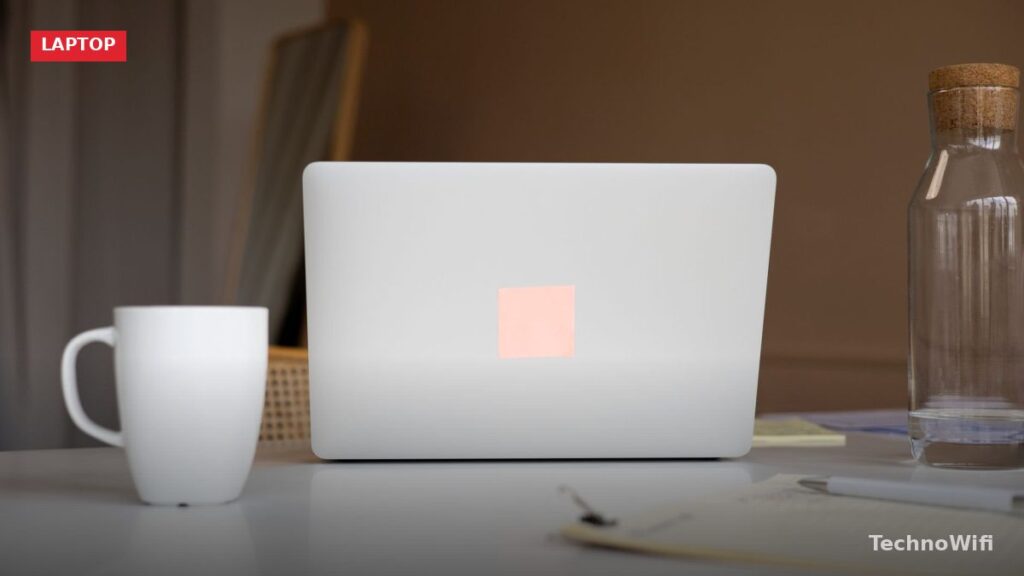
Chromebooks do a lot with very little. They boot in seconds, run all day on a single charge, and handle browsing, email, and Google Workspace without breaking a sweat. But the hardware itself is intentionally minimal. Most models ship with two USB-C ports, a small screen, and not much else.
That is where accessories come in. The right add-ons turn a basic Chromebook into a full productivity setup, a comfortable homework station, or a portable creative tool. The wrong ones waste money on features ChromeOS cannot use. This guide covers ten categories of Chromebook accessories, explains what to look for in each, and helps you figure out which ones actually matter for how you use your machine.
What Chromebook Accessories Do You Actually Need
Not every Chromebook user needs the same accessories. A student doing homework on the couch has different needs from someone running a home office with a Chromebook as their primary computer. The table below breaks down each accessory category, what it does, what you should expect to pay, and who benefits most.
| Accessory Type | What It Does | Price Range | Who Needs It |
|---|---|---|---|
| USB-C Hub/Dock | Adds USB-A, HDMI, SD card, and Ethernet ports through one cable | $25 – $150 | Anyone who needs more ports or an external display |
| External Monitor | Gives you a larger, higher-resolution display for multitasking | $100 – $400 | Home office workers, students writing papers |
| Wireless Mouse | Replaces the trackpad with precise, comfortable cursor control | $15 – $80 | Anyone who uses a Chromebook at a desk regularly |
| External Keyboard | Provides full-size keys, better travel, and ergonomic positioning | $20 – $100 | Heavy typists, anyone using an external monitor |
| Stylus Pen | Enables handwriting, drawing, and precise screen interaction | $20 – $70 | Students taking notes, artists, touchscreen Chromebook owners |
| Laptop Stand | Raises the screen to eye level to reduce neck strain | $15 – $60 | Anyone using a Chromebook at a desk for more than an hour |
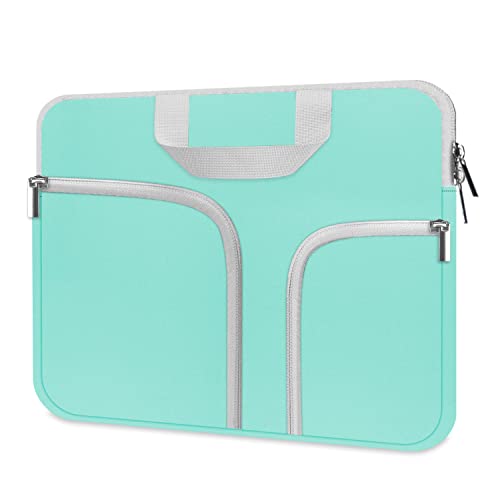
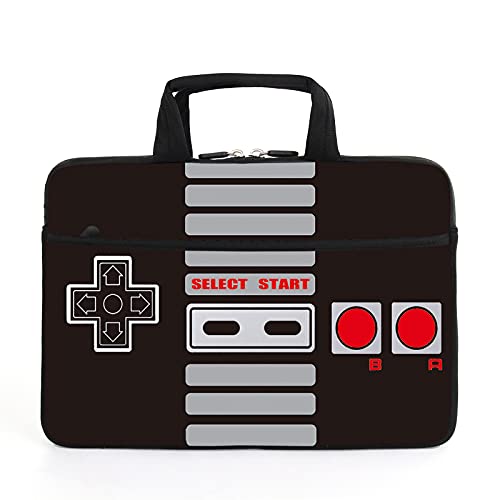
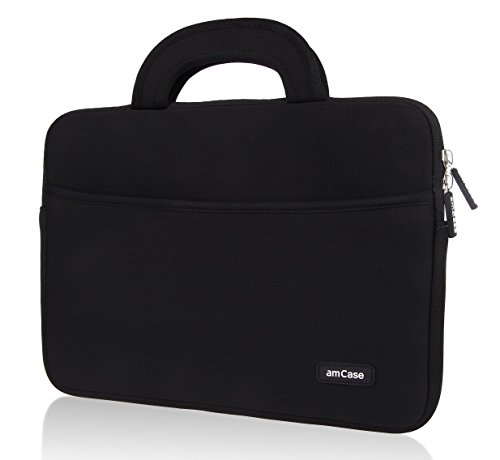
| Case/Sleeve | Protects the Chromebook during transport and storage | $10 – $50 | Students, commuters, anyone carrying a Chromebook in a bag |
| External Storage (USB Drive) | Adds file storage beyond the Chromebook’s limited internal drive | $8 – $50 | Users who work offline or handle large files |
| Webcam | Upgrades video quality for calls and meetings beyond the built-in camera | $30 – $130 | Remote workers, teachers, anyone on frequent video calls |
| Headset | Provides clear audio and a microphone for calls, classes, and media | $20 – $100 | Students in online classes, remote workers, gamers |
Best USB-C Hubs and Docks for Chromebooks
Most Chromebooks have two USB-C ports and nothing else. No USB-A, no HDMI, no SD card slot, no Ethernet. A USB-C hub solves all of that with a single connection. Plug the hub into one USB-C port and you get access to the ports your Chromebook skipped.
For basic use, look for a hub with at least one HDMI output, two USB-A ports, and a USB-C power passthrough port. The passthrough port lets you charge your Chromebook while the hub is connected, so you do not lose a charging port. Hubs in the $25 to $50 range from Anker, UGREEN, and QGeeM cover these basics well.
If you want a full desktop dock, step up to something like the Anker 553 or CalDigit USB-C SOHO. These add Ethernet, SD/microSD slots, and sometimes audio outputs. Docking stations in the $80 to $150 range are worth it if you connect your Chromebook to the same desk setup every day. One cable plugs in and everything connects at once.
One thing to check before buying: make sure your Chromebook’s USB-C port supports DisplayPort Alt Mode. Without it, the HDMI output on the hub will not work for video. Most Chromebooks made after 2020 support this, but some budget models do not. The spec sheet for your specific model will confirm it.
What External Monitor Works With a Chromebook
An external monitor is the single biggest upgrade for Chromebook productivity. Going from a 14-inch laptop display to a 24-inch or 27-inch monitor changes how you work. You can have a Google Doc open next to your research, a spreadsheet visible alongside your email, or a video call running while you take notes.
ChromeOS supports external displays natively. Plug in a monitor through USB-C or HDMI (via a hub) and it works immediately. You can mirror your screen or extend it, and ChromeOS remembers your display arrangement between sessions.
For most Chromebook users, a 24-inch 1080p IPS monitor is the sweet spot. It is sharp enough for text-heavy work, affordable at $100 to $180, and does not demand much from the Chromebook’s integrated graphics. Good options include the Dell S2425HS, ASUS VA24DCP (which has a built-in USB-C input with 65W charging), and the LG 24MP60G-B.
If you want something sharper, a 27-inch 4K monitor like the Dell S2722QC or LG 27UL500 works with Chromebooks that support 4K output. Check your model’s specs first. Some budget Chromebooks cap external display output at 1080p even if the monitor supports higher resolutions.
Which Wireless Mouse Is Best for a Chromebook
Chromebook trackpads are decent, but they cannot match a proper mouse for comfort and precision during extended work sessions. If you use a Chromebook at a desk for more than 30 minutes at a stretch, a wireless mouse makes a noticeable difference.
You have two connection options: Bluetooth or USB-A dongle. Bluetooth mice pair directly with the Chromebook and do not use a port. Dongle mice plug a tiny receiver into a USB-A port (which means you need a hub if your Chromebook only has USB-C). Dongle connections tend to be slightly more responsive, but Bluetooth is more convenient.
The Logitech M750 and Logitech Pebble Mouse 2 are strong choices for Chromebook users. Both connect via Bluetooth, work quietly, and last months on a single charge. For something more ergonomic, the Logitech Lift or Anker Vertical Mouse reduces wrist strain during long sessions. Expect to pay $20 to $50 for a reliable wireless mouse that works well with ChromeOS.
Do You Need an External Keyboard for a Chromebook
An external keyboard makes sense in two situations. First, if you connect your Chromebook to an external monitor and want to type at a comfortable distance from the bigger screen. Second, if you type for long periods and want better key feel and ergonomics than the built-in keyboard provides.
ChromeOS works with virtually any USB or Bluetooth keyboard. You do not need a Chromebook-specific keyboard, though some models (like the Logitech K580 or Logitech Pebble Keys 2 K380s) include a ChromeOS key layout with a dedicated search key, assistant key, and function row mapped to ChromeOS shortcuts. That is a nice convenience but not a requirement.
Mechanical keyboard fans can use their favorite board with a Chromebook. ChromeOS recognizes standard USB and Bluetooth HID keyboards. You may need to remap modifier keys in Settings > Device > Keyboard if the layout does not match ChromeOS defaults. Budget $20 to $60 for a good wireless keyboard, or $60 to $100 for a compact mechanical option.
What Stylus Pens Work With Chromebooks
A stylus pen turns a touchscreen Chromebook into a note-taking and drawing tool. It is especially useful for students who want to annotate PDFs, sketch diagrams, or handwrite notes in apps like Google Cursive and Squid. Artists can also use a stylus with web-based drawing apps like Sketchpad and Autodraw.
Not every Chromebook supports a stylus. Your device needs a touchscreen at minimum, and for the best experience, it should support USI (Universal Stylus Initiative) protocol. USI styluses communicate pressure sensitivity and tilt data to the screen, which makes handwriting and drawing feel natural rather than clunky.
Check your Chromebook’s spec sheet to see if it supports USI 1.0 or USI 2.0. If it does, any USI-compatible stylus will work. Good options include the HP USI Pen, Lenovo USI Pen 2, and the Penoval USI 2.0 Stylus. Prices range from $20 to $70. Avoid cheap capacitive styluses with rubber tips. They do not offer pressure sensitivity and feel like drawing with a crayon on glass.
Why a Laptop Stand Matters for Chromebook Users
Chromebook screens sit low when the laptop is flat on a desk. That forces you to look down, which strains your neck and shoulders over time. A laptop stand raises the screen closer to eye level. It is a simple fix that makes a real difference if you work at a desk for more than an hour a day.
Stands come in two styles. Fixed stands hold the Chromebook at one height and angle. They are cheap ($15 to $25), stable, and often fold flat for travel. Adjustable stands let you set the exact height and tilt angle. They cost a bit more ($25 to $60) but let you dial in the perfect position.
If you use a laptop stand, you will almost certainly want an external keyboard and mouse too. Raising the screen means the built-in keyboard is no longer at a comfortable typing angle. Popular options include the Rain Design mStand, the Nulaxy C1 adjustable stand, and the Amazon Basics aluminum stand. All three hold Chromebooks securely and keep the bottom vented for airflow.
Best Chromebook Cases and Sleeves for Protection
Chromebooks are built to be portable, which means they get tossed into backpacks, bags, and car seats regularly. A case or sleeve protects against scratches, minor bumps, and the occasional drop. This matters especially for student Chromebooks that travel between home and school five days a week.
Sleeves are the simplest option. They are padded envelopes that the Chromebook slides into for transport. Look for neoprene or memory foam padding, a soft interior lining that will not scratch the lid, and a zipper that does not catch on the Chromebook’s edges. Tomtoc and Amazon Basics make reliable sleeves in the $12 to $25 range.
Hardshell cases snap onto the Chromebook and stay on during use. They add bulk and a few ounces of weight but protect against drops and dings constantly, not only during transport. Brands like Gumdrop and Brenthaven make hardshell cases specifically for popular Chromebook models. These are common in schools and run $25 to $50. Make sure to buy a case designed for your exact Chromebook model, as port placement and dimensions vary between devices.
How to Add More Storage to a Chromebook
Most Chromebooks ship with 32GB or 64GB of internal storage. That fills up fast if you download Android apps, save files locally, or work offline. Google Drive helps, but it requires an internet connection. A USB flash drive or external SSD gives you fast, portable, offline storage.
ChromeOS reads USB drives formatted as FAT32, exFAT, or ext4 right out of the box. Plug in the drive and it appears in the Files app immediately. For most users, a 64GB or 128GB USB-C flash drive is all they need. The SanDisk Ultra Dual Drive USB-C and Samsung FIT Plus are compact, fast, and cost $10 to $25.
If you handle large files like video projects or Linux apps on your Chromebook, consider a portable SSD instead. The Samsung T9 and SanDisk Extreme deliver read speeds above 1,000 MB/s through USB-C. Prices start around $50 for 500GB. Stick with USB-C drives when possible to avoid needing an adapter or hub for connection.
Does a Chromebook Need an External Webcam
Built-in Chromebook cameras are functional but not great. Most shoot 720p video with poor low-light performance. If you spend time on Zoom, Google Meet, or Microsoft Teams calls, an external webcam makes you look noticeably better. The jump from 720p to 1080p is immediately visible to everyone on the call.
Any USB webcam that works on a plug-and-play basis will work with ChromeOS. You do not need special drivers. The Logitech C920x and C922x are long-standing favorites at $60 to $80. They shoot 1080p, have built-in stereo microphones, and mount on top of a laptop screen or external monitor.
For tighter budgets, the Anker PowerConf C200 and NexiGo N660 deliver solid 1080p video for $30 to $50. On the higher end, the Logitech Brio 500 adds 4K capture, auto-framing, and a built-in privacy shutter for around $130. One thing to keep in mind: webcams connected through a USB-C hub sometimes drop frames if the hub is also driving a monitor. For the best performance, plug the webcam into the Chromebook’s USB-C port directly or use a hub with strong bandwidth handling.
Best Headsets for Chromebook Video Calls and Classes
A headset combines headphones and a microphone in one device. That matters for video calls and online classes where you need to hear clearly and be heard clearly. Using laptop speakers and the built-in mic works in a pinch, but background noise bleeds in and audio quality suffers compared to even a basic headset.
Wired USB headsets are the simplest option. They plug in through USB-A (via a hub) or USB-C, draw power from the connection, and work immediately with no pairing or charging. The Jabra Evolve2 30 and Logitech Zone 300 are reliable wired options in the $40 to $70 range with good noise-canceling microphones.
Wireless Bluetooth headsets give you freedom to move around during calls. The Jabra Evolve2 55, Logitech Zone Vibe 100, and Sony WH-1000XM5 (with its built-in mic) all work well with ChromeOS over Bluetooth. Expect to pay $60 to $100 for a solid wireless headset. If you already own Bluetooth earbuds with a microphone, those work too. ChromeOS handles Bluetooth audio and mic input without any extra setup.
How to Set Up a Chromebook Desk Workstation
If you use a Chromebook as your primary computer, combining several accessories into a desk workstation gives you a desktop-like experience. The setup is straightforward and does not require any technical knowledge.
- Place a laptop stand on your desk and set the Chromebook on it at eye level.
- Connect a USB-C hub or dock to one of the Chromebook’s USB-C ports.
- Plug an external monitor into the hub’s HDMI port. ChromeOS should detect it automatically.
- Open Settings > Device > Displays to arrange your screens and set resolution preferences.
- Connect your wireless mouse and keyboard via Bluetooth or through the hub’s USB-A ports.
- If you use a webcam, plug it into a USB port on the hub or directly into the Chromebook.
- Plug the Chromebook’s charger into the hub’s USB-C passthrough port so it charges while docked.
With this setup, you unplug one cable when you grab the Chromebook to go. When you return, plug the same cable back in and everything reconnects. It is the same concept as a docking station for a Windows laptop, but simpler because ChromeOS handles display and peripheral detection automatically.
Frequently Asked Questions About Chromebook Accessories
Do all USB-C hubs work with Chromebooks?
Most USB-C hubs work with Chromebooks, but video output depends on your Chromebook supporting DisplayPort Alt Mode over USB-C. If your model does not support it, the hub’s HDMI port will not output video even though data and charging still work. Check your Chromebook’s spec sheet before buying a hub for monitor use.
Can I use a Windows keyboard with a Chromebook?
Yes. ChromeOS recognizes standard USB and Bluetooth keyboards regardless of their intended operating system. The Windows key functions as the Search/Launcher key on ChromeOS. You can remap modifier keys in Settings > Device > Keyboard to match your preferences.
How much storage can I add to a Chromebook with a USB drive?
ChromeOS supports USB drives of any size. A 1TB or 2TB external SSD works every bit as well as a 32GB flash drive. The practical limit is the drive’s own capacity, not ChromeOS. Format the drive as exFAT if you also want to use it with Windows and Mac computers.
Do Bluetooth accessories drain Chromebook battery faster?
Bluetooth does use some battery, but the impact is small. A Bluetooth mouse and keyboard together might reduce battery life by 15 to 30 minutes over a full charge cycle. That is a minor trade-off for the convenience of wireless peripherals and keeping your USB-C ports free.
What accessories do students need for a school Chromebook?
At minimum, a protective case or sleeve and a wired headset. Schools often require wired headsets because Bluetooth pairing causes issues in classrooms with 30 students. A USB flash drive is helpful for saving assignments offline. If the Chromebook has a touchscreen and supports USI, a stylus pen is a strong addition for note-taking.
Sources
Google – Chromebook Accessories Help | Universal Stylus Initiative – USI Standard | Logitech – ChromeOS Keyboards | Anker – USB-C Hubs | Google Chromebook – Official Site