Factory Reset Google Home Mini (1st Gen)
- Turn the device over. Find the small reset button on the bottom (next to the power cable).
- Press and hold the reset button for 15 seconds.
- You hear a chime confirming the reset has started.
- Wait about 1 minute for the device to fully reset. The LEDs flash, then the device restarts and enters setup mode.
The Google Home Mini plays a confirmation sound and its lights flash during the reset process. When it’s done, you hear the setup greeting (“Hi, to get started, download the Google Home app”).
Factory Reset Nest Mini (2nd Gen)
- Turn off the microphone using the switch on the side. The lights turn orange.
- Press and hold the center of the device (the top) for 15 seconds.
- You hear a chime indicating the reset is starting.
- Wait about 1 minute for the reset to complete.
- Turn the microphone back on using the side switch.
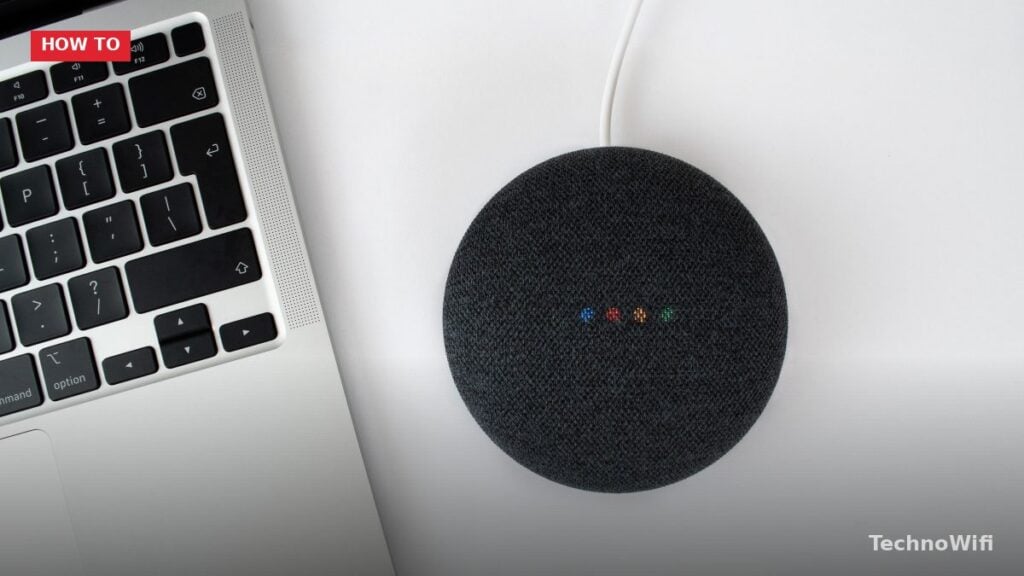
The Nest Mini’s reset process is slightly different from the original Home Mini because it doesn’t have a physical reset button on the bottom. The mic switch plus top press combo replaces that.
Reset Other Google Home Devices
| Device | Reset Method |
|---|---|
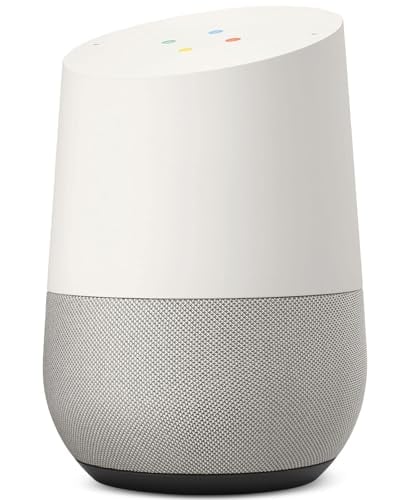
| Google Home (original) | Press and hold the Mute button on the back for 15 seconds |
| Google Home Max | Press and hold the reset button on the bottom near the power cable for 15 seconds |
| Nest Audio | Press and hold the center of the top for 15 seconds |
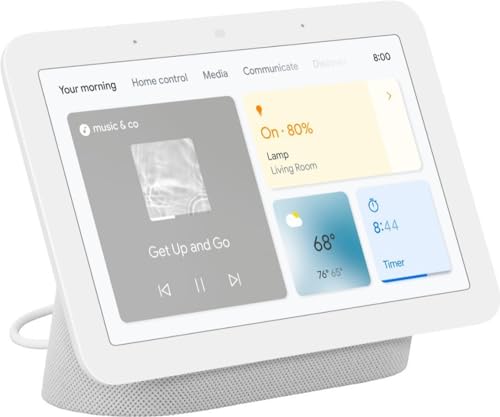
| Nest Hub | Press and hold both volume buttons simultaneously for 10 seconds |
| Nest Hub Max | Press and hold both volume buttons simultaneously for 10 seconds |
Reset From the Google Home App
- Open the Google Home app on your phone.
- Tap on the device you want to reset.
- Tap the Settings gear icon in the top-right corner.
- Scroll down and tap “Remove device.”
- Confirm the removal.
This removes the device from your Google account and home. The device itself needs a physical factory reset (using the buttons above) to fully clear its data. Removing from the app alone doesn’t erase the on-device data.
Set Up After Reset
- Open the Google Home app.
- Tap “+” then “Set up device” then “New device.”
- Select your home.
- The app searches for the device. When found, tap to connect.
- Follow the prompts: choose a room, connect to WiFi, sign in with your Google account, and configure Voice Match.
- The device is ready to use.
Your Google Home/Nest groups, routines, and smart home devices are tied to your Google account, not the speaker. After setting up the reset device on the same account, your routines and smart home connections are still there. Speaker groups need to be reconfigured since the reset device drops out of any existing groups.
Soft Restart (Keep Settings)
Before doing a full factory reset, try a soft restart. This fixes most temporary issues without erasing your configuration.
Voice command: Say “Hey Google, restart.” The device restarts and reconnects to WiFi with all settings intact.
For the complete picture, our Philips hue Google Home guide fills in the gaps.
Manual: Unplug the power cable, wait 30 seconds, plug it back in. Wait 1 to 2 minutes for the device to fully boot.
Google Home app: Open the app, tap the device, tap the Settings gear, scroll down and tap “Reboot.”
When to Reset vs. Restart
Restart when the device isn’t responding to commands, gives incorrect responses, won’t play music, or has WiFi connectivity glitches. A restart fixes about 80% of common issues.
Factory reset when you’re selling or giving the device away, when persistent issues don’t resolve with restarts, when you’re moving the device to a different Google account, or when WiFi problems persist after changing your router or password.
Troubleshooting
Device won’t respond to voice commands after restart. Check that the microphone isn’t muted (the LED shows orange when muted on the Nest Mini, or a set of orange dots on the Home Mini). Make sure the device is connected to WiFi – check in the Google Home app. If it shows “Offline,” unplug, wait 30 seconds, and plug back in.
We break down Google Home vs homepod in a separate post that complements this one.
Can’t find device during setup after reset. Make sure your phone is on the same WiFi network as the one you’re trying to set up the device on. Enable Bluetooth and Location on your phone (the Google Home app needs both for device discovery). Restart the Google Home app. If the device still isn’t found, unplug it, wait 30 seconds, plug it back in, and try setup again.
Device won’t connect to WiFi after reset. Verify you’re entering the correct WiFi password (it’s case-sensitive). Make sure the WiFi network is 2.4GHz – Google Home Mini and Nest Mini support both 2.4GHz and 5GHz, but some routers have issues with the initial setup on 5GHz. Move the device closer to the router for initial setup.
“Something went wrong” during setup. Force close the Google Home app and reopen it. Make sure the app is updated to the latest version. Restart your phone. Try removing and reinstalling the Google Home app if the error persists.
Will resetting delete my smart home devices?
No. Smart home devices (lights, plugs, thermostats) are linked to your Google account, not to a specific speaker. Resetting one Google Home device doesn’t affect your smart home setup. After re-adding the speaker to your account, all your smart devices are still controllable through it.
Can I reset without the app?
Yes. The physical button reset works independently of the app and doesn’t require your phone, WiFi, or even internet access. Just hold the button for 15 seconds. You’ll need the app afterward to set it up again, but the reset itself is entirely done through the hardware button.
How do I change the WiFi network without resetting?
Open the Google Home app, tap the device, tap the Settings gear, tap “WiFi,” then “Forget This Network.” The device enters setup mode and you can connect it to a new WiFi network without losing your other settings. This is faster than a full factory reset when you’ve simply changed routers or WiFi passwords.
Sources
Google – Factory Reset Google Home | Google – Set Up Google Home