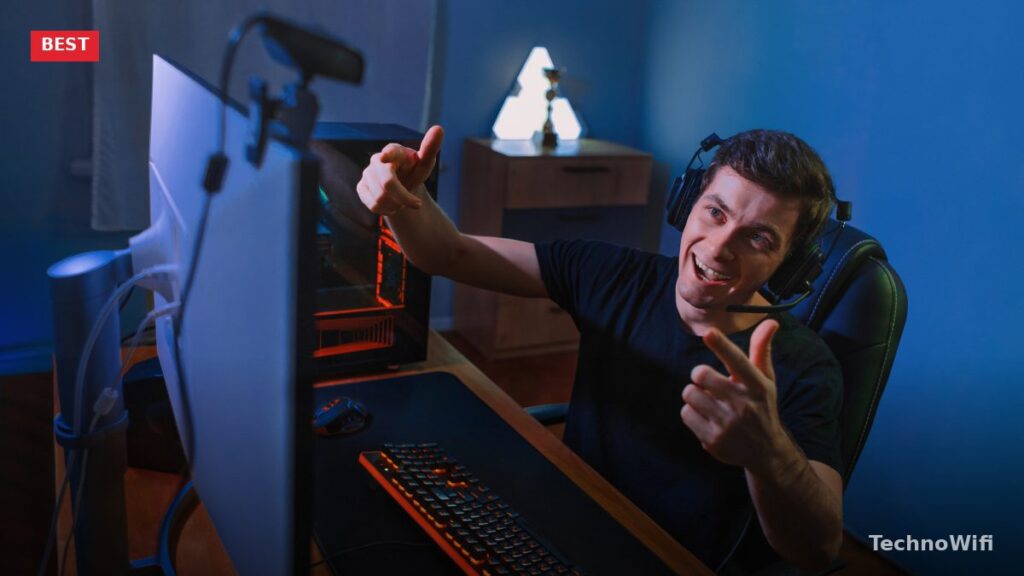
What Makes a Good Streaming Webcam?
A streaming webcam needs to look good in motion, handle mixed lighting, and produce consistent quality over hours of use. Specs like resolution and frame rate matter, but the sensor quality and image processing matter more. A great 1080p webcam with a large sensor and good low-light performance looks better on stream than a cheap 4K webcam with a tiny sensor that produces noisy, washed-out video.
Frame rate is the other key spec. 30 fps looks acceptable for facecam, but 60 fps looks noticeably smoother when you move, gesture, or have active expressions. Most viewers won’t consciously notice the difference, but the overall production quality feels higher at 60 fps.
Best Webcams for Streaming Compared
| Webcam | Best For | Resolution | Frame Rate | Autofocus | Price |
|---|---|---|---|---|---|
| Elgato Facecam Pro | Best overall | 4K | 60 fps (1080p), 30 fps (4K) | Yes | $250 to $300 |
| Logitech C922 Pro | Best value | 1080p | 30 fps (1080p), 60 fps (720p) | Yes | $80 to $100 |
| Logitech Brio 4K | Best 4K under $200 | 4K | 30 fps (4K), 60 fps (1080p) | Yes | $150 to $200 |
| Razer Kiyo Pro Ultra | Best low light | 4K | 30 fps (4K), 60 fps (1080p) | Yes | $200 to $250 |
| Elgato Facecam MK.2 | Best 1080p60 | 1080p | 60 fps | Fixed focus | $130 to $150 |
| Logitech C920 | Best budget | 1080p | 30 fps | Yes | $50 to $70 |
Best Overall: Elgato Facecam Pro
The Facecam Pro is the best webcam you can buy for streaming. The Sony STARVIS sensor delivers sharp, detailed video at 4K/30fps or 1080p/60fps. The image quality is close to a dedicated mirrorless camera setup at a fraction of the cost and complexity. Colors are accurate, skin tones look natural, and the dynamic range handles mixed lighting (a window behind you and a ring light in front) without blowing out highlights or crushing shadows.
The Camera Hub software gives you manual control over exposure, white balance, ISO, shutter speed, contrast, and saturation. You can dial in your exact look and save it as a preset that loads automatically when the webcam turns on. This means your stream always looks the same regardless of ambient lighting changes.
The built-in f/2.0 aperture lens creates a slight background blur that separates you from your environment. It’s not the dramatic bokeh of a mirrorless camera, but it adds production value. The USB 3.0 connection is required for 4K – it won’t work at full resolution on USB 2.0 ports. At $250 to $300, it’s expensive for a webcam, but it replaces setups that previously required a $500+ camera, capture card, and dummy battery.
Best Value: Logitech C922 Pro
The C922 Pro has been the go-to streaming webcam for years and it’s still a strong pick at $80 to $100. The 1080p/30fps video quality is clean and reliable. Colors are accurate, autofocus is responsive, and the dual stereo microphones are decent enough for casual use (though most streamers use a dedicated mic).
The C922 includes a background replacement feature through Logitech’s software that works without a green screen. It’s not as clean as OBS virtual background or a physical green screen, but it works in a pinch. The tripod-compatible clip mounts securely on monitors of any thickness.
If you want to go deeper, we have a separate guide on webcam for teaching fitness classes.
At 1080p/30fps (or 720p/60fps), the C922 doesn’t match the Facecam Pro’s image quality. Low-light performance is acceptable but noisy. For streamers who are starting out or don’t want to invest heavily in camera equipment, the C922 delivers solid results at a fair price. Upgrade to the Facecam Pro or Brio when production quality becomes a priority.
Best 4K Under $200: Logitech Brio 4K
The Brio shoots 4K at 30 fps or 1080p at 60 fps with HDR support. The HDR helps in rooms with mixed lighting by preserving detail in both bright and dark areas. The three-preset field of view (65, 78, or 90 degrees) lets you frame your shot from tight headshot to wide view without physically moving the camera.
The RightLight 3 with HDR technology adjusts exposure automatically to keep your face properly lit even when lighting conditions change (clouds passing over a window, someone turning on a light). Windows Hello facial recognition support is a bonus for quick logins.
The Brio competes with the Razer Kiyo Pro Ultra on specs but costs $50 to $100 less. The Razer has a slightly larger sensor and better low-light performance, but the Brio’s HDR and flexible field of view make it the better value. For streamers who want 4K footage without spending $250+, the Brio hits the sweet spot.
Best Low Light: Razer Kiyo Pro Ultra
The Kiyo Pro Ultra has the largest sensor in any webcam – a 1/1.2″ Sony sensor that gathers significantly more light than competitors. If you stream in a dimly lit room, a bedroom with a single desk lamp, or anywhere without dedicated lighting, this webcam produces cleaner, brighter video than anything else at any price.
The large sensor also creates the most natural background blur of any webcam. The f/1.7 aperture separates you from your background with bokeh that genuinely resembles a mirrorless camera. Combined with the low-light performance, the Kiyo Pro Ultra looks premium even in suboptimal environments.
The physical privacy shutter covers the lens when not in use. The magnetic mount detaches easily. At $200 to $250, it’s expensive but justified if your streaming space lacks proper lighting. If you have good lighting (ring light, key light, or natural daylight), the Facecam Pro or Brio deliver comparable results for the same or less money since the large sensor advantage matters less in well-lit conditions.
For related tips, check out our full guide on wireless webcams.
Best 1080p60: Elgato Facecam MK.2
The Facecam MK.2 focuses on doing 1080p at 60 fps extremely well. The fixed-focus lens eliminates the autofocus hunting that occasionally plagues other webcams during streams (where the camera briefly goes soft while refocusing). Set your seating position once and the focus stays locked.
The Sony STARVIS sensor delivers clean, low-noise video with accurate colors. The Camera Hub software provides full manual controls. No built-in microphone – Elgato assumes streamers use a dedicated mic, so they didn’t add one that would go unused. The uncompressed video output means your streaming software (OBS, Streamlabs) gets the cleanest possible image to work with.
At $130 to $150, the Facecam MK.2 is the best option for streamers who want 60 fps without paying $250+ for 4K they don’t need. Most streaming platforms display facecams in a small corner overlay, where the visual difference between 1080p and 4K is invisible.
Webcam Placement and Lighting Tips
Place your webcam at eye level or slightly above. Mounting it on top of your monitor is the standard position. Below-eye-level angles (laptop webcam from below) are unflattering and look unprofessional. If your monitor is too low, a small monitor riser or webcam tripod fixes the angle.
Lighting matters more than camera quality. A $50 webcam with a $30 ring light looks better than a $300 webcam in a dark room. Position your main light source in front of you (behind the monitor) and slightly above eye level. Avoid backlighting from windows behind you – either close the blinds or add a front-facing light strong enough to balance it.
Do I need a 4K webcam for streaming?
No. Twitch and YouTube stream at 1080p maximum for most creators (4K streaming requires partnership-level accounts on most platforms). Your facecam typically occupies a small corner of the stream layout, making the difference between 1080p and 4K invisible to viewers. A good 1080p/60fps webcam is plenty for streaming. 4K webcams are worth it for YouTube video content, pre-recorded videos, or if you plan to crop in on your footage during editing.
Should I use the webcam’s built-in microphone?
For streaming, no. Built-in webcam microphones pick up keyboard noise, fan noise, and room echo because they’re far from your mouth. A dedicated USB microphone ($60 to $100) positioned close to your face sounds dramatically better. The Samson Q2U, Blue Yeti, or Rode PodMic USB are popular streaming choices. For casual video calls where you don’t want extra equipment, built-in microphones work fine.
Can I use a DSLR or mirrorless camera as a webcam?
Yes. Most modern mirrorless cameras (Sony, Canon, Fujifilm) can function as webcams using manufacturer software or an HDMI capture card ($100 to $150 for an Elgato Cam Link). The image quality exceeds any webcam due to larger sensors and better lenses. The downsides are cost, complexity (dummy battery for power, capture card, tripod mount), and the camera being unavailable for photography while mounted as a webcam. For streamers who already own a mirrorless camera, it’s worth trying before buying a dedicated webcam.
Sources
Elgato – Facecam | Logitech – Webcams | Razer – Kiyo Pro Ultra