When you purchase through links on our site, we may earn an affiliate commission. Here’s how it works.
Best Laptops for Video Editing – Overview
An ideal laptop for video editing should be able to handle huge editing jobs easily. It should be light enough to carry around.
The screen should be bright with a crystal-clear display to ensure your best work. Apart from this, the laptop should have a significantly longer battery life too.
If you plan to work on editing 4K videos with high bitrates, then you’ll need a powerfully configured laptop.
It should offer sufficient CPU performance, have a speedy hard drive, and has huge RAM.
| Laptop | Display | CPU | Storage |
|---|---|---|---|
| Apple Macbook Pro (16”) | 16.2 inches | M1 Pro / M1 Max | 512 GB to 8 TB |
| Asus ROG Zephyrus G14 | 14 inches | AMD Ryzen 9-4900 HS | 1 TB (SSD) |
| Dell G5 15 SE | 15.6 inches | AMD Ryzen 5 4600 H | 256GB/512GB/1TB (SSD) |
| Asus Zenbook 13 OLED | 13.3 inches | AMD Ryzen 7 5700 U | 512 GB |
| Apple Macbook Air M1 | 13.3 inches | Apple M1 | 256 GB to 2 TB (SSD) |
| Dell XPS 15 | 15.6 inches | 10th Gen Intel Core i5/i7 | 256GB/512GB/1TB/2TB |
| Alienware m15 R4 | 15 inches | Intel Core i7 | 1 TB (SSD) |
| Alienware Area-51 m | 17.3 inches | Intel 8th-Gen Core i7/i9 | 512GB/1TB/1TB (HDD) |
| Microsoft Surface Book 2 | 15 inches | Intel Core i7 | 256GB/512GB/1TB (SSD) |
| HP Spectre x360 (15”) | 15.6 inches | Intel Core i7 | 256GB/512GB/1TB (SSD) |
10 Best Laptops for Video Editing
To help you make the best decision, here’s our selection of the best laptops for video editing:
1 – Apple Macbook Pro (16”) 2021
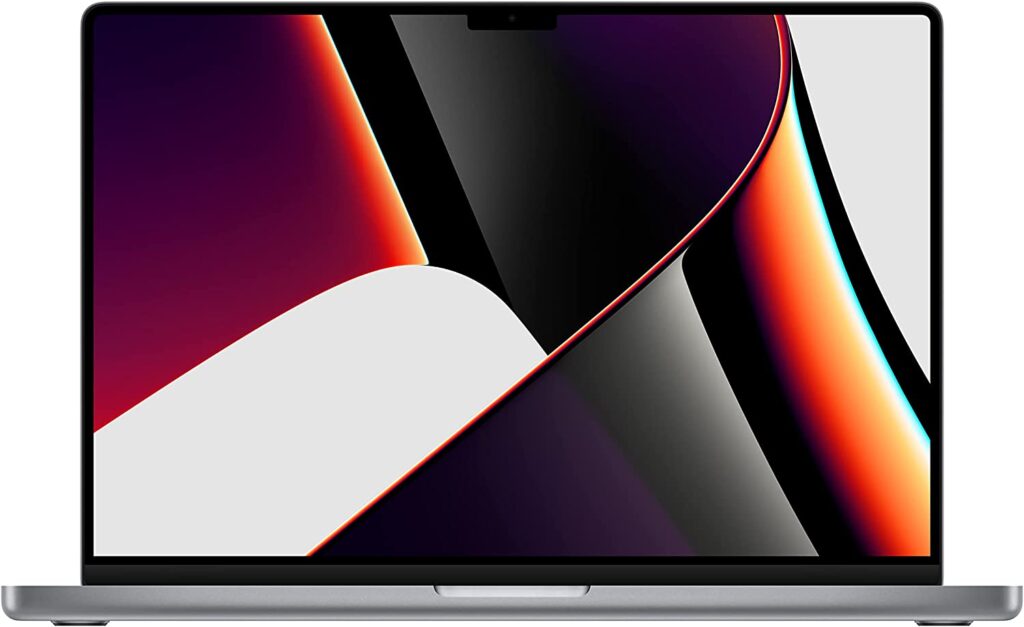
Best Laptops for Video Editing – Macbook Pro 16
The Apple Macbook Pro 2021 (16-inch) is first on our list of the best laptops for video editing. It features either M1 Max or M1 Pro chips for incredible performance.
This model has thinner bezels. This gives more space for the impressive mini-LED Liquid Retina XDR displays.
Apart from this, the laptop has amazing smoothness and contrast thanks to its 120Hz refresh rate.
This laptop has a safety-centric MagSafe 3 charging port. It also has an HDMI-out port to connect multiple displays.
It also comes with an SD card reader to connect professional-quality cameras.
The laptop also has Thunderbolt 4/USB 4 ports. Along with these, you also get a high-definition 1080p webcam, three improved microphones and an amazing six-point sound system.
Features of MacBook Pro 16-inch 2021
- Display – 2 inches (3456 x 2244 pixels)
- CPU – M1 Pro (10-core CPU) / M1 Max (10-core CPU)
- GPU – 16-core to 32-core integrated GPU
- RAM – 16 GB to 64 GB
- Storage – 512 GB to 8 TB
- Weight – 7 lbs. (M1 Pro) / 4.8 lbs. (M1 Max)
2 – Asus ROG Zephyrus G14
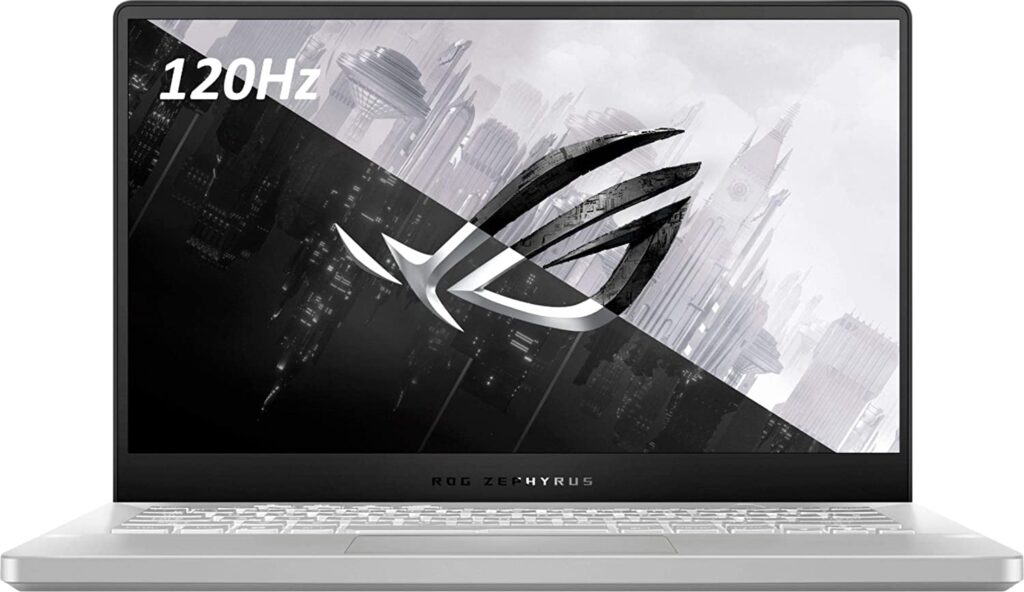
Best Laptops for Video Editing – Asus Rog
The Asus ROG Zephyrus G14 is the best gaming and video editing laptop in the market today.
The advanced latest AMD tech delivers power without draining the battery for a longer duration. It comes packed with the incredibly powerful Nvidia GeForce RTX 2060 Max-Q GPU too.
This laptop can easily handle heavy editing jobs. It is also lightweight enough to be carried around easily all day long.
The long-lasting battery life, which can run for 11 hours, makes this laptop a top choice for video editors too. Apart from this, the 14-inch laptop is reasonably priced too.
Tech experts have named the Asus ROG Zephyrus 14 an excellent all-around laptop for video editing.
Features of Asus ROG Zephyrus G14
- Display – 14-inch (1920 x 1080 pixels)
- CPU – AMD Ryzen 9-4900 HS
- GPU – Nvidia GeForce RTX 2060
- RAM – 16 GB
- Storage – 1 TB SSD
- Weight – 5 lbs.
3 – Dell G5 15 SE
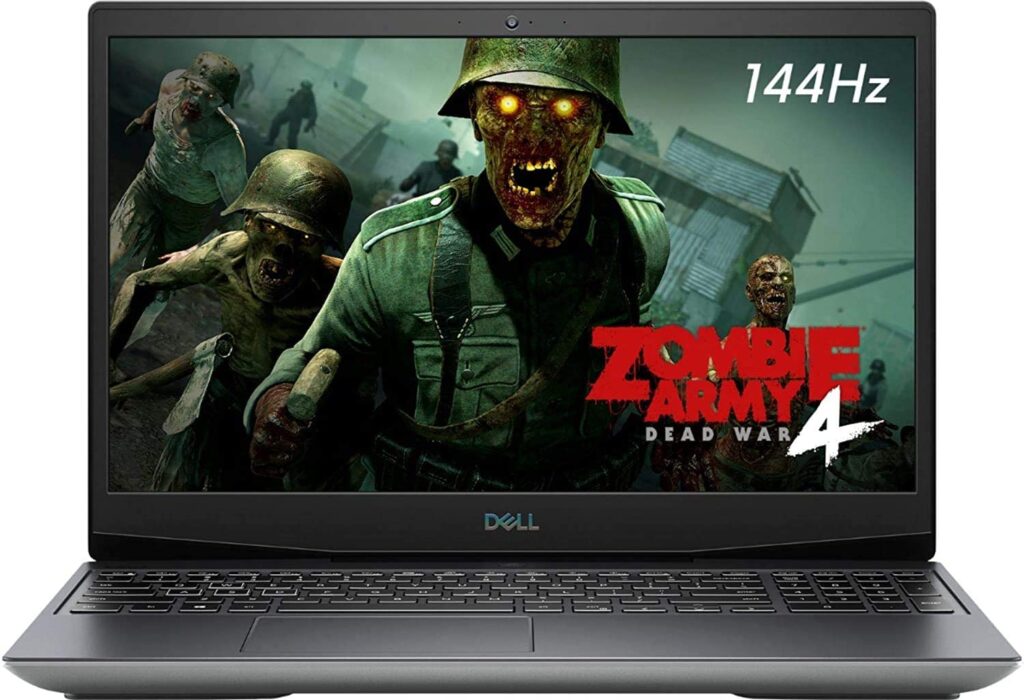
Best Laptops for Video Editing – Dell G5 15 SE
The Dell G5 15 SE 2020 is an extremely affordable yet powerful laptop. It is a one-of-a-kind laptop that gives impressive video editing performance at a very reasonable price.
The laptop is packed with a powerful AMD configuration.
This laptop has a Ryzen 5 4000-series CPU combined with a Radeon RX 5600M GPU. This combination offers unmatched graphics to professional editors.
It has a significantly large and extendable storage capacity which also makes it incredibly fast too. The display is also considerably improved with a faster refresh rate of 144Hz.
Features of Dell G5 15 SE
- Display – 6 inches (1920 x 1080 pixels) (60 – 144 Hz refresh rate)
- CPU – AMD Ryzen 5 4600H / Ryzen 5 4800 H
- GPU – AMD Radeon RX 5600 M
- RAM – 8 GB to 16 GB
- Storage – 256 GB / 512 GB / 1 TB (SSD)
- Weight – 5 lbs.
4 – Asus Zenbook 13 OLED
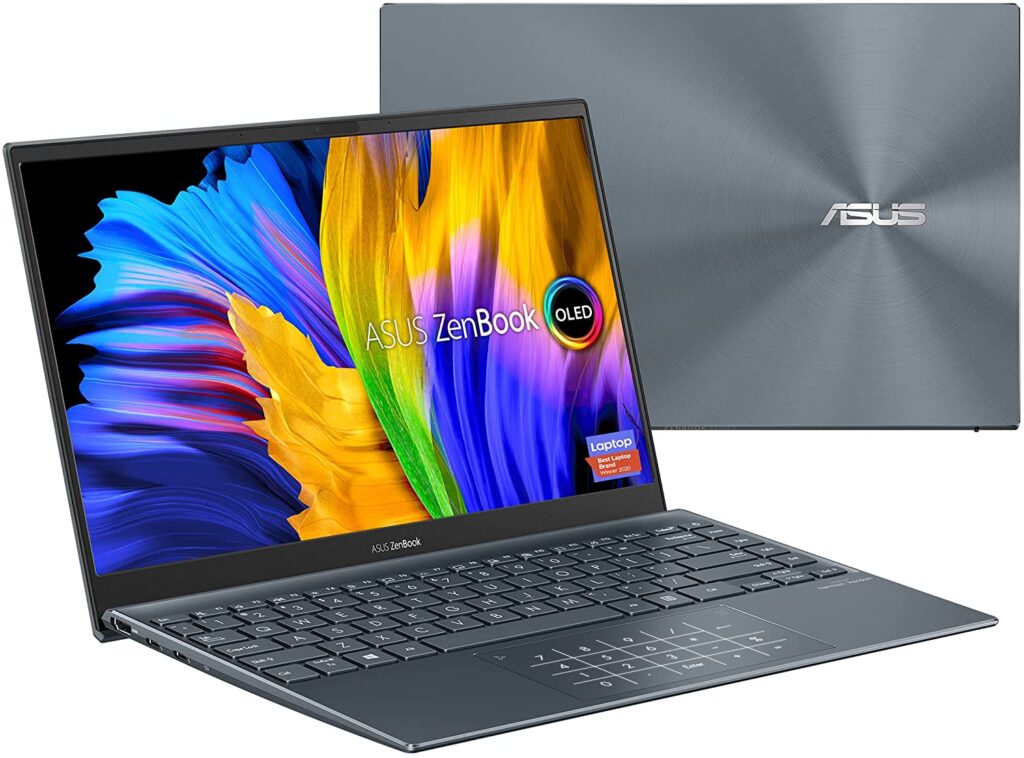
Best Laptops for Video Editing – Asus Zenbook 13 OLED
The Asus Zenbook 13 OLED is packed with AMD equipment. It offers excellent value for money and is an impressive laptop for video editing jobs.
It comes equipped with mesmerizing 1080 pixels OLED display. It has an exceptionally long battery life with a slim, lightweight profile.
The low price tag is also attractive for many amateur video editors.
The laptop comes packed with the AMD Ryzen 7 5000-series CPU. It has 8 GB RAM which is more than sufficient to handle normal video editing tasks.
The battery lasts for an impressive 15 hours, making the laptop perfect for on-site editing. The Asus Zenbook 13 OLED is the best choice for a small, lightweight and affordable laptop for video editing in 2021.
Features of Asus Zenbook 13 OLED
- Display – 3 inches (1080 pixels) OLED
- CPU – AMD Ryzen 7 5700 U
- GPU – Integrated Radeon Graphics
- RAM – 8 GB
- Storage – 512 GB
- Weight – 5 lbs.
5 – Apple Macbook Air M1
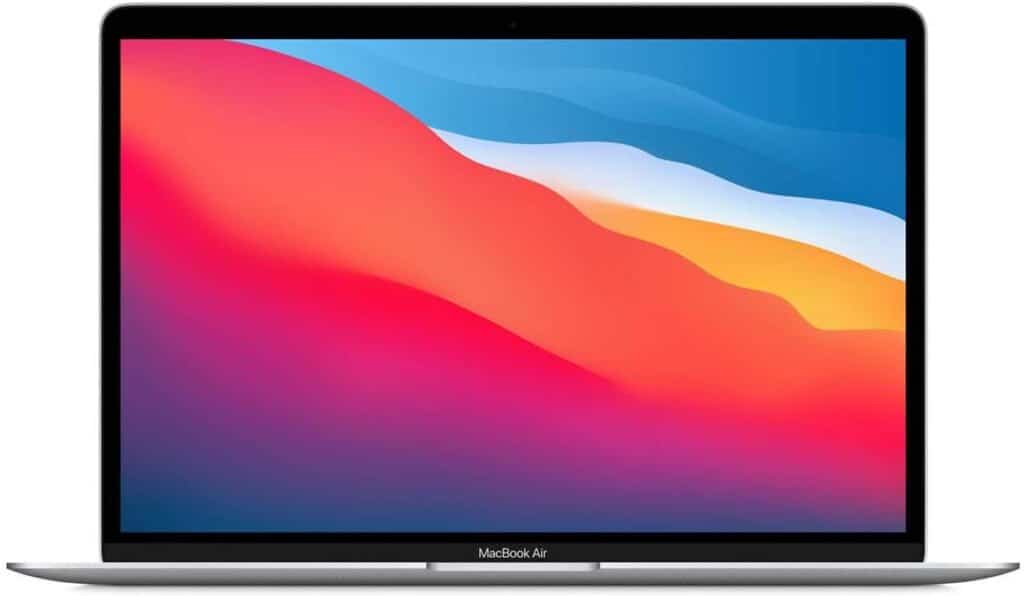
Best Laptops for Video Editing – Macbook Air M1
The Apple Macbook Air with M1 is the lightest Macbook for video editing. It comes with a powerful M1 chip for the best video editing experience.
The laptop is remarkably lightweight and can handle serious editing tasks easily.
This laptop is considerably lighter and cheaper than the Macbook Pro series. However, it gets the editing jobs done effortlessly.
The laptop has a powerful sound system with Dolby Atmos audio. The vivid 2560 x 1600 pixel Retina display is also easy on the eyes when you work for longer durations.
Features of Apple Macbook Air M1
- Display – 3 inches (2560 x 1600 pixels)
- CPU – Apple M1
- GPU – Integrated 8-core GPU
- RAM – 8 GB to 16 GB
- Storage – 256 GB to 2 TB (SSD)
- Weight – 8 lbs.
6 – Dell XPS 15
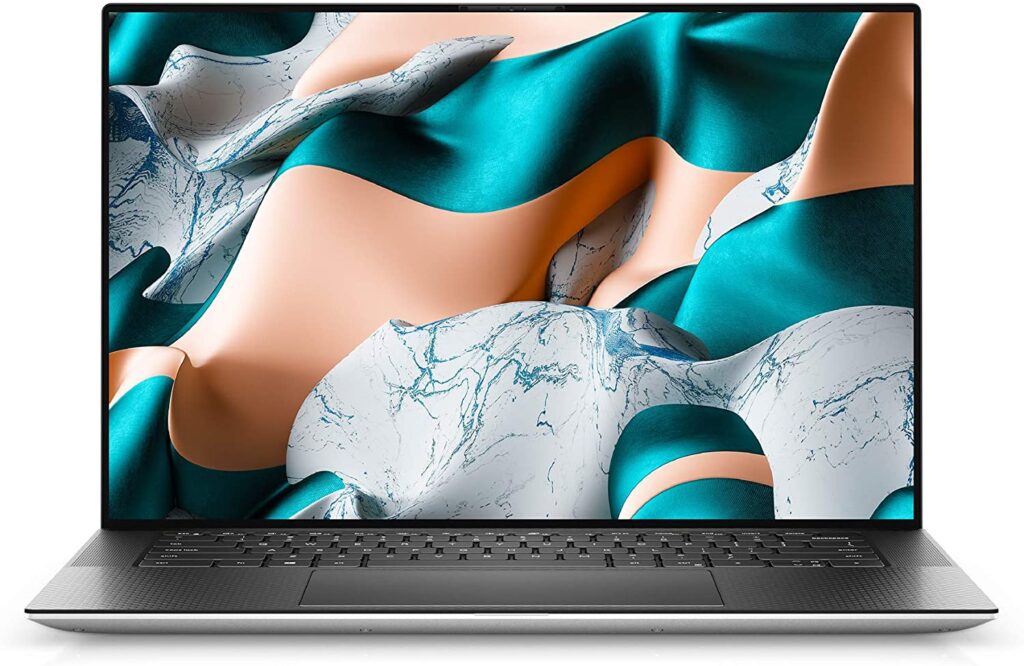
Best Laptops for Video Editing – Dell XPS 15
Here’s another laptop from Dell which has proven to be a wonderful choice for video editing. It is not simply slim and stylish. It comes packed with incredibly exciting features.
It has an immersive 15.6-inch InfinityEdge 4K display. It is powerful enough to handle serious video editing tasks. The 10th Gen Intel Core processors make sure of it.
It also comes with the latest Nvidia GeForce GTX 1650 Ti GPU for optimal graphics.
The laptop is also equipped with a pair of powerful speakers. The battery life is solid and this laptop is considered to be the best choice for video editing in its price range.
The Dell XPS 15 maintains a perfect balance between portability and screen size.
Features of Dell XPS 15
- Display – 6 inch (1080 pixels / 4K)
- CPU – 10th Gen Intel Core i5 / i7
- GPU – Intel UHD / Nvidia GTX 1650 Ti
- RAM – 8 GB / 16 GB / 32 GB / 64 GB
- Storage – 256 GB / 512 GB / 1 TB / 2 TB (SSD)
- Weight – 4 to 4.5 lbs.
7 – Alienware m15 R4
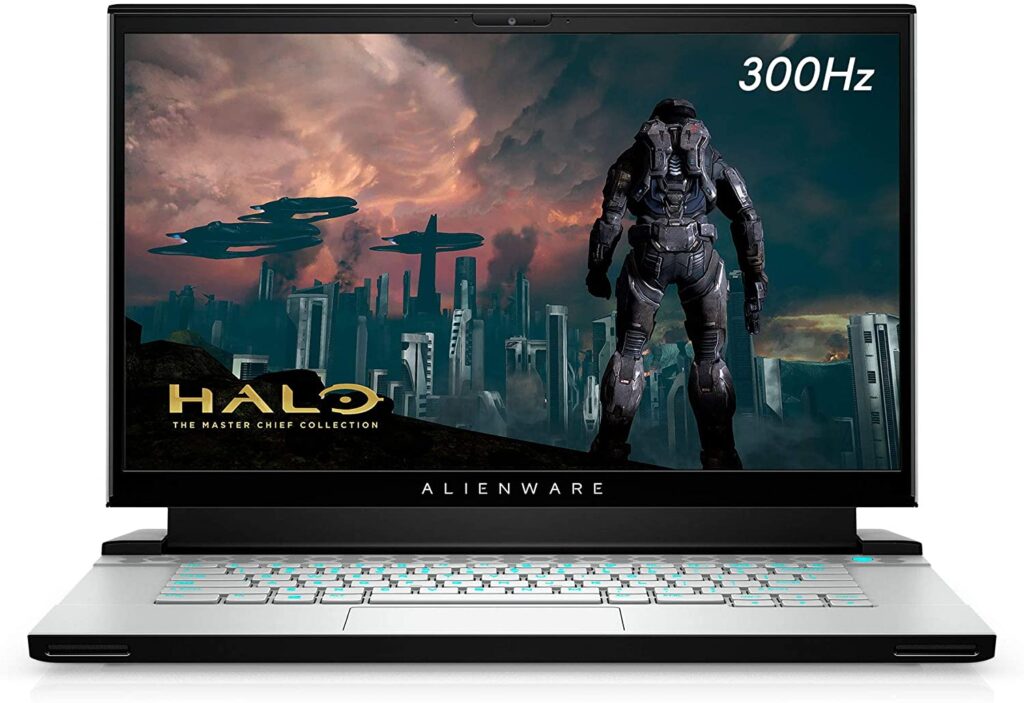
Best Laptops for Video Editing – Alienware M15 R4
The Alienware m15 R4 is mainly thought to be a gaming laptop. However, its powerful processor and functions also make it ideal for video editing too.
It is an asleep and fully functional laptop with an impressive and advanced Nvidia GPU. This laptop offers streamlined functions with a fast CPU.
It has sufficient hard drive space and offers an incredibly vivid 4K display.
This laptop is lightweight, sleek and offers dual-use. You can use the Alienware m15 R4 for gaming and video editing with ease.
Features of Alienware m15 R4
- Display – 15 inches (4K OLED)
- CPU – Intel Core i7 – 10870H CPU @ 2.20 GHz to 2.21 GHz
- GPU – Nvidia GeForce RTX 3070
- RAM – 16 GB
- Storage – 1 TB (SSD)
- Weight – 3 lbs.
8 – Alienware Area-51m
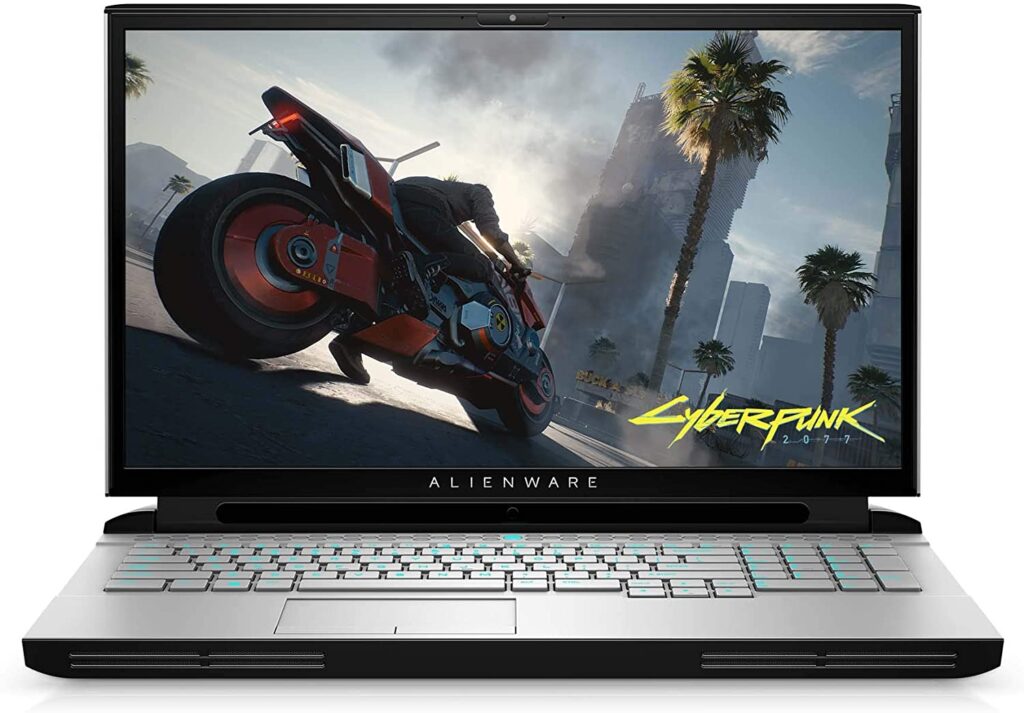
Best Laptops for Video Editing – Alienware Area 51 m
The Alienware Area-51m is yet another excellent laptop for gamers and video editors. It comes packed with an extremely fast 9th Gen Core i9 processor.
This is combined with a powerful Nvidia GPU for optimal gaming and video editing experience. The laptop has an incredibly vivid 17.3-inch screen with an HD display for the best view.
The laptop also comes packed with a pair of powerful built-in speakers for an all-around experience.
Features of Alienware Area-51m
- Display – 3 inch (1080 pixels / 4K)
- CPU – Intel 8th Gen Core i7 / Intel 9th Gen Core i7 / Intel Core i9
- GPU – Nvidia RTX 2060 / 2070 / 2080
- RAM – 8 GB / 16 GB / 32 GB / 64 GB
- Storage – 1 TB HDD / 512 GB / 1 TB
- Weight – 5 lbs.
9 – Microsoft Surface Book 2 (15 inches)
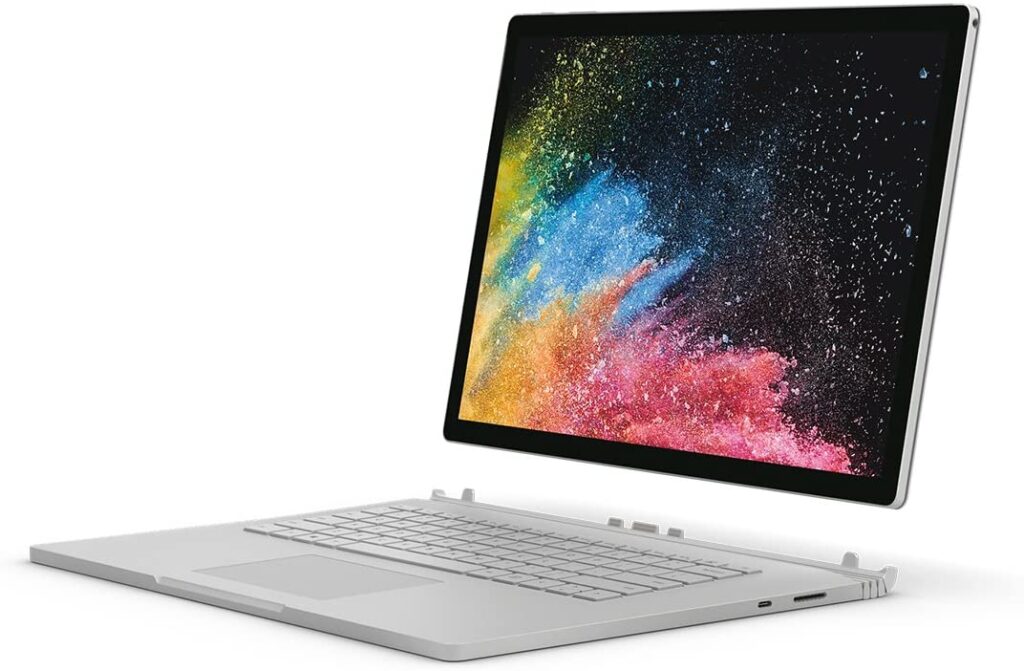
Best Laptops for Video Editing – Microsoft surface book 2
The Microsoft Surface Book 2 (15”) is to most versatile video editing laptop on this list. It is a powerful tablet and portable laptop in one.
It comes packed with the latest 8th Gen Core i7 processor and the most advanced Nvidia GPU for an optimal, vibrant viewing experience.
The extremely powerful display makes it very easy to distinguish the slightest change in color and size of items on the screen.
The laptop also sports a powerful, long-lasting battery which makes it ideal for use outdoors too.
Features of Microsoft Surface Book 2 (15 inches)
- Display – 15 inches (3240 x 2160 pixels)
- CPU – Intel Core i7
- GPU – Nvidia GTX 1060
- RAM – 16 GB
- Storage – 256 GB / 512 GB / 1 TB (SSD)
- Weight – 2 lbs.
10 – HP Spectre x360 15-inch (2019)
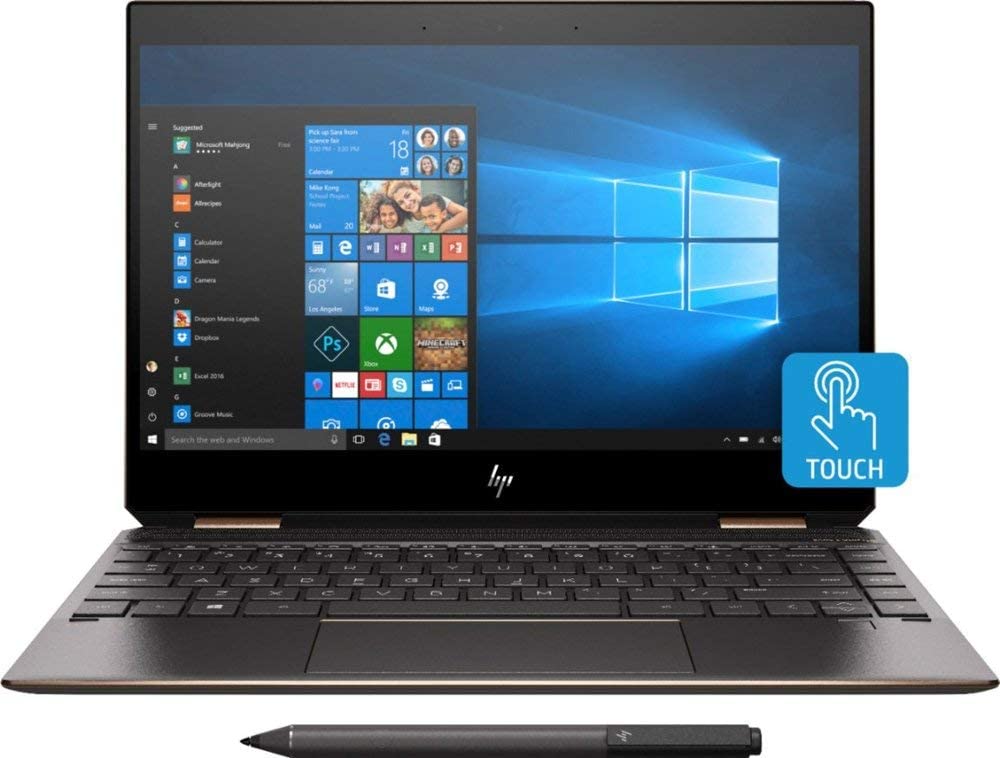
Best Laptops for Video Editing – HP Spectre x360
The HP Spectre x360 is the best 2-in-1 video editing laptop on this list. It has a sleek design, colorful panel, and comfortable keyboard to comfortably work for longer hours.
This laptop has a sharp, vivid display with the HP Active Pen and two programmable buttons.
The laptop has an aluminum casing for durability and outdoor use. The laptop is meant for gaming and video editing alike, thanks to its powerful processor and incredible GPU.
Features of HP Spectre x360 15-inch
- Display – 6 inch (4k)
- CPU – Intel Core i7
- GPU – Nvidia MX 150 / GTX 1050 Ti
- RAM – 8 GB / 16 GB
- Storage – 256 GB / 512 GB / 1 TB (SSD)
- Weight – 6 lbs.
See Also Best HP Laptops for Video Editing
Conclusion
This is our list of the best laptops for video editing for 2021. We have selected these models based on their performance and portability, including other technical specifications.
You can select the best-suited one from the list according to your specific requirements and preferences. To buy the best product, make sure to click the link attached for every model given above.
See Also
Best Laptops for College Students
Best Laptops for Photo Editing
Best Laptops for Graphic Design
Best Laptop for Online Classes