Setting Up the Sony FDR X3000 as a Webcam
Working from home? Your built-in laptop webcam is probably holding you back. Sure, you can throw on a beauty filter in Zoom or swap your background, but the image quality itself won’t improve much.
With webcams still tough to find at good prices, a lot of people are turning to their existing DSLRs and camcorders as webcam replacements. Camera makers like Canon, Nikon, and Sony have released imaging software that makes this easier.
Here’s the catch: Sony’s imaging software doesn’t support the FDR-X3000 yet. As of August 2026, Sony’s software works with 37 camera models, but this one isn’t on the list.
Don’t worry though. You can still use the Sony FDR-X3000 as a webcam. You just need either a capture card or the camera’s built-in USB streaming feature. Either way, you’ll get high-resolution video, image stabilization, and autofocus, which is a big step up from any standard webcam.
For the complete picture, our Sony a7iii camera guide fills in the gaps.
Let’s walk through both methods.
Method 1: Using a Capture Device
This is the better option if you want to stream in 4K. The FDR-X3000 can output a clean HDMI signal without on-screen overlays like autofocus mode and frame rate info.
To remove those overlays, go into the camera’s menu and press the “info” button. You might also want to set up a tripod, external microphone, and some lighting for the best results.
Here’s how to get it working.
Step 1: Get a Video Capture Device
Your computer can’t interpret the video signal from the FDR-X3000 directly. That’s where a capture device comes in. You need one that supports UVC (USB Video Class), which is the same protocol that lets regular webcams work with apps like Skype and Zoom.
We break down mirrorless vs DSLR cameras for beginners in a separate post that complements this one.
The Elgato Cam Link 4K is a popular choice for this, though it’s often hard to find in stock. If you can’t grab one, the Mirabox Capture Card and Magewell USB Capture HDMI are solid alternatives.
In 2026, you can also look at the Elgato HD60 X or the AVerMedia Live Gamer Mini. Both support 4K passthrough and work as UVC devices without extra driver installs. Budget options under $30, like generic HDMI-to-USB dongles, do work for 1080p but tend to add slight latency and sometimes drop frames. For professional video calls where you need consistent quality, spending a bit more on a name-brand capture card is worth it.
One thing to watch for: the FDR-X3000 has a mini-HDMI port, and not every capture card includes the right cable. Double-check the package contents before buying.
Step 2: Connect Everything
Once you have your capture device, plug the micro-HDMI cable into the camera’s HDMI port. Connect the other end to the capture device. Then plug the capture device into a USB port on your laptop.
Use a USB 3.0 port if your capture card supports it. USB 2.0 ports work but may limit you to 1080p or introduce minor delays in the video feed. You can identify USB 3.0 ports by their blue plastic insert, or check your computer’s spec sheet.
Check the capture device’s user manual to see if you need to install any additional drivers.
Step 3: Configure the Camera Output
Before jumping into your video call, take a minute to adjust the camera settings for the best output.
Set the resolution to 1080p or 4K depending on your capture card’s capabilities. Turn off any built-in date/time stamps, since those will show up on your video feed and look unprofessional.
If the camera supports it, switch to a flat color profile. This can look washed out on the camera’s LCD, but it often looks better on screen once the video signal passes through a capture card. The slight softness in contrast actually mimics the look of a professional broadcast camera.
Disable auto power-off in the camera’s settings. By default, the FDR-X3000 shuts down after a period of inactivity, which will cut your video feed mid-call. Setting it to “never” while connected to power prevents this.
Step 4: Start Using It
You shouldn’t need any extra apps. Both macOS and Windows will recognize the camera as a webcam automatically. It’ll show up as an option in Google Meet, Microsoft Teams, Skype, Zoom, and other video conferencing apps.
If the camera does not appear in your app’s video source list, try these steps: unplug and reconnect the capture card, restart the video app, and check that no other software is already using the capture device. OBS, Streamlabs, and other streaming tools can sometimes hold exclusive access to the video input.
Method 2: USB Streaming
This method works when powering the FDR-X3000 with its battery. Just keep in mind that if the camera is on but idle, it’ll shut down after about 5 minutes to save power.
- Install the USB Streaming driver on your PC.
- Restart your PC.
- Remove the camera’s battery and connect the camera to a power outlet.
- Connect the USB cable to both the camera and PC.
- Power on the camera.
- In the camcorder’s menu, turn on the “USB STREAMING” option.
- Open your webcam software on the PC. You’re all set.
USB streaming is simpler to set up because you do not need a separate capture card. The trade-off is that video quality tops out at 720p through this method, and you lose the ability to output a clean 4K signal. For casual team meetings and one-on-one calls, 720p from a dedicated camera still looks noticeably better than most built-in laptop webcams, so it is a fair option if you want a quick setup without extra hardware.
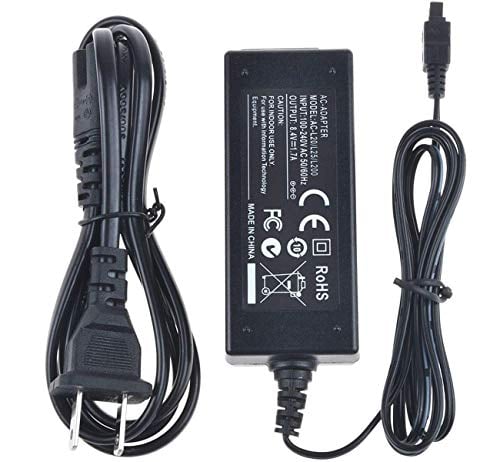
If you choose this method, connecting the camera to an AC adapter instead of running on battery is strongly recommended. A full battery charge lasts about 90 minutes of continuous streaming, which may not cover a long meeting. With AC power, you can leave the camera running all day without worrying about it shutting down.
Improving Your Video Call Quality
Using the FDR-X3000 as your webcam is only part of the equation. A few extra adjustments can make your video look professional.
Lighting
Good lighting makes more of a difference than any camera upgrade. Position a light source in front of you, not behind you. A ring light or a desk lamp with a daylight-temperature bulb (5000K to 6500K) works well. Avoid overhead fluorescent lights as your only source, since they create unflattering shadows under the eyes and chin.
If you are on a budget, sitting near a window with natural light hitting your face is free and looks great. Just watch out for direct sunlight, which can create harsh contrast between the lit and shadowed sides of your face.
Audio
Even with excellent video, poor audio will undermine the whole experience. The FDR-X3000’s built-in microphone picks up room echo and keyboard clatter easily. A dedicated USB microphone or a headset with a boom mic will sound dramatically better.
The Blue Yeti, Rode NT-USB Mini, and HyperX SoloGast are popular choices that plug directly into your computer’s USB port with no extra setup. Position the microphone six to twelve inches from your mouth and slightly off to the side to reduce plosive sounds.
Framing and Background
Position the camera at eye level or slightly above. Angles that look up from below are unflattering, and top-down angles can make you look distant. A small tripod or a stack of books works fine to raise the camera if your desk is too low.
Keep the background clean and uncluttered. A bookshelf, a plain wall, or a few plants behind you looks professional without being distracting.
Final Thoughts
Using the Sony FDR-X3000 as a webcam is pretty straightforward once you know the steps. Whether you go with a capture card or USB streaming, you’ll see a real upgrade in your video quality compared to a standard webcam. In 2026, remote and hybrid work is still the norm for many people, so investing a little time in your video setup pays off in every meeting, interview, and presentation you do from home.