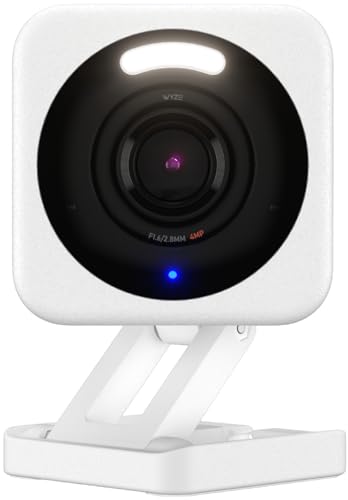
Before setting up the Wyze Cam Outdoor, make sure you’ve already configured the Wyze Base Station. The camera communicates with the base station while it’s positioned at your preferred outdoor location. Once that’s done, follow the steps below.
Recommended Steps for How to Set Up Wyze Cam Outdoor (Basic Setup)
Unbox everything and check that all devices, tools, and accessories are accounted for. Then download and install the Wyze app from the App Store (iOS) or Play Store (Android) and follow these steps:
- Open the Wyze app, select Home, and tap the + plus sign in the top left.
- Select Add Device.
- Select Cameras > Wyze Cam Outdoor > Begin Setup.
- If you haven’t set up the Wyze Base Station yet, or if your existing base station already has 4 cameras connected, the app may ask you to set up another one.
- Find the charging cover on the back of the camera. Open it and turn on the power switch.
- You’ll see a solid yellow light on the device.
- Detach the magnetic base from the camera body.
- Go back to the Wyze App and tap Begin Setup.
- Press the SYNC button on the bottom of the Wyze Cam Outdoor.
- The camera will say, “Pairing is in progress. Please wait.”
- The device will show a yellow and blue status light.
- It will automatically pair with the Wyze Base Station.
- When pairing finishes, the status light turns Solid Blue.
- The app moves to the next screen, where you’ll name your Wyze Cam Outdoor.
Setting Up Wyze Cam Outdoor with Amazon Alexa
You’ll need to add the Wyze Skill to your Amazon device first. After that, you can use voice commands to control the Wyze Cam Outdoor. None of your password or account details are shared with Amazon during this process. Here’s what to do after adding the Wyze skill:
- Open the Wyze app and head to Account Settings. Tap “Works With” to link Alexa to your Wyze account.
- You can also tell Alexa to “Enable Wyze skill” to set up the connection. Make sure you’ve downloaded the Alexa app on your phone and activated the Wyze skill.
- Follow the on-screen prompts to link your Wyze account to Alexa. You’ll enter your Wyze username and password to give Alexa access to the camera.
- Tap Add Device so Alexa can find your Wyze camera. Or just say, “Discover my devices.”
- Once Alexa discovers the camera, it shows up in the Smart Home section of the Alexa App.
Setting Up Wyze Cam Outdoor with Google Home
You can also sync the Wyze Cam Outdoor with Google Home by following these steps:
- Make sure the camera’s firmware is up to date (4.9.2.18+ for Wyze Cam v2 and 4.10.1.8+ for Wyze Cam Pan). Check by opening the camera’s livestream in the Wyze app, tapping the icon in the top right, and going to Camera Settings > Device Info > Update firmware.
- Download and install the Google Home app.
- On the Home screen, tap Add.
- Select Set up device.
- Select Works with Google.
- Find the Wyze Home listing, sign in with your account, and Google will sync all listed devices automatically.
Frequently Asked Questions Regarding How to Set Up Wyze Cam Outdoor
Q1. How do you set up Wyze Cam Outdoor with SmartThings?
A. The Wyze Cam Outdoor doesn’t currently work with SmartThings or HomeKit. Keep an eye on our posts for any updates on that.
Q2. Can Wyze Cam Outdoor be hacked?
A. Like any connected device, the Wyze Cam Outdoor could be vulnerable to hacking. Your best defense is keeping your login credentials secure and using strong passwords.
Bottom Line for How to Set Up Wyze Cam Outdoor
Getting the Wyze Cam Outdoor set up is a quick process once you know the steps. Go through the user manual to familiarize yourself with all the included accessories and tools.
Let us know in the comments if you’d like more how-to guides for your favorite security cameras and devices.