Connecting a Dell laptop to an external monitor is mostly plug and play – if you know which port your laptop has and which cable to use. The catch is that Dell uses different port combinations across its laptop lines. An XPS has completely different outputs than an Inspiron, and grabbing the wrong cable means nothing shows up on screen.
This guide covers every current Dell laptop series, the right cable for each one, how to set up your display in Windows, and what to do when the monitor says “No Signal.”
What Ports Does My Dell Laptop Have for a Monitor
Dell equips each laptop line with different video output ports. Before buying any cable or adapter, flip your laptop to the side and identify what you’re working with. Here’s what each Dell series typically includes.
| Dell Laptop Series | Video Output Ports | Adapter Needed for HDMI Monitor? |
|---|---|---|
| Inspiron (14, 15, 16) | HDMI + USB-C | No – has full-size HDMI |
| Latitude (5000, 7000) | USB-C/Thunderbolt 4 (HDMI on some models) | Usually yes, unless model has HDMI |
| XPS (13, 14, 16) | USB-C/Thunderbolt only | Yes – USB-C to HDMI adapter required |
| Vostro (14, 15, 16) | HDMI + USB-C | No – has full-size HDMI |
| Precision (3000, 5000, 7000) | USB-C/Thunderbolt, HDMI, sometimes DisplayPort | No – most models have HDMI or DP |
Dell Inspiron and Vostro laptops are the easiest to connect. They have a standard HDMI port, so you just need an HDMI cable. XPS laptops are the trickiest because Dell removed the HDMI port entirely in favor of slim USB-C/Thunderbolt ports. You’ll need an adapter or a USB-C monitor to connect.
Latitude models fall somewhere in between. The Latitude 5000 series often includes an HDMI port alongside USB-C, while the thinner Latitude 7000 series may only have USB-C/Thunderbolt. Precision workstations are the most flexible, with most models offering HDMI, USB-C/Thunderbolt, and sometimes a mini DisplayPort.
How to Connect Dell Laptop to Monitor With HDMI
HDMI is the simplest connection method. If your Dell laptop has a full-size HDMI port and your monitor has an HDMI input, you need one HDMI cable and nothing else. This works on Inspiron, Vostro, most Latitude 5000 models, and most Precision workstations.
- Turn on your external monitor and set it to the correct HDMI input (HDMI 1, HDMI 2, etc.).
- Plug one end of the HDMI cable into your Dell laptop’s HDMI port.
- Plug the other end into the monitor’s HDMI input.
- Wait a few seconds. Windows should detect the monitor automatically and either mirror or extend your display.
- Press Windows key + P to choose a display mode: Duplicate (same image on both screens), Extend (two independent screens), or Second screen only.
- If the monitor doesn’t show anything, press Windows key + P and select “Extend” or “Duplicate” – the laptop may default to “PC screen only.”
Use an HDMI 2.0 or HDMI 2.1 cable if you’re connecting to a 4K monitor. Older HDMI 1.4 cables work for 4K at 30Hz, but the refresh rate will feel sluggish. For 4K at 60Hz, you need at least HDMI 2.0.
How to Connect Dell XPS to External Monitor
Dell XPS laptops (XPS 13, XPS 14, XPS 16) only have USB-C/Thunderbolt ports. There’s no HDMI jack anywhere on the machine. You have two options: use a USB-C to HDMI adapter, or connect directly to a USB-C monitor.
Option 1: USB-C to HDMI Adapter
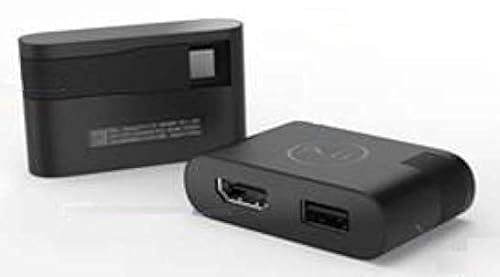
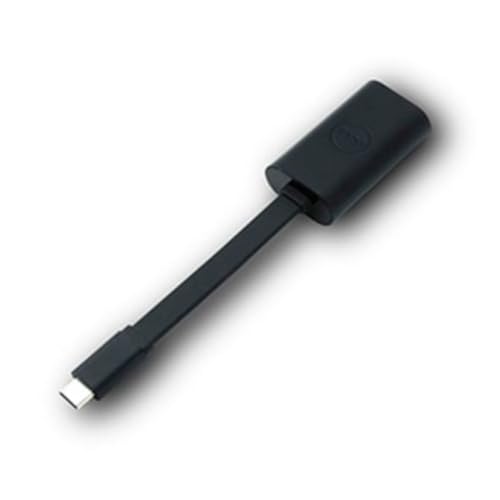
- Get a USB-C to HDMI adapter or a USB-C to HDMI cable. Dell sells its own (Dell USB-C to HDMI adapter), but any adapter that supports DisplayPort Alt Mode over USB-C works fine.
- Plug the USB-C end into one of the Thunderbolt ports on your XPS laptop.
- Connect an HDMI cable from the adapter to your monitor.
- Windows detects the monitor automatically. Press Windows key + P to choose your display mode.
For 4K at 60Hz output from an XPS, make sure the adapter supports HDMI 2.0 or higher. Cheap adapters sometimes max out at 4K 30Hz or 1080p.
Option 2: Direct USB-C Monitor Connection
- If your monitor has a USB-C input (many Dell UltraSharp monitors do), connect a USB-C cable directly from the XPS to the monitor.
- The monitor receives both the video signal and power through the same cable, so your XPS charges while connected.
- Press Windows key + P to set the display mode.
This is the cleanest setup for XPS owners. One cable handles video, data, and charging. Dell’s UltraSharp U2723QE and U2724DE monitors support this natively.
How to Connect Dell Laptop to Monitor With USB-C or Thunderbolt
USB-C and Thunderbolt connections work across all Dell laptop lines that have these ports. The process is the same whether you have a Latitude, XPS, Precision, or newer Inspiron.
- Confirm your Dell laptop’s USB-C port supports video output. Not every USB-C port does – some only handle data and charging. Look for a small DisplayPort icon (a rectangle with a line in the corner) or a Thunderbolt lightning bolt icon next to the port.
- Connect a USB-C cable from the laptop to the monitor’s USB-C input, or use a USB-C to HDMI/DisplayPort adapter if your monitor doesn’t have USB-C.
- Windows should detect the display within a few seconds.
- Press Windows key + P to choose Duplicate, Extend, or Second screen only.
Thunderbolt 4 ports (found on recent XPS, Latitude 7000, and Precision models) deliver the most bandwidth. A single Thunderbolt 4 port can drive two 4K monitors at 60Hz through a compatible dock. Standard USB-C with DisplayPort Alt Mode typically supports one 4K display at 60Hz.
Dell Docking Stations for Multiple Monitors
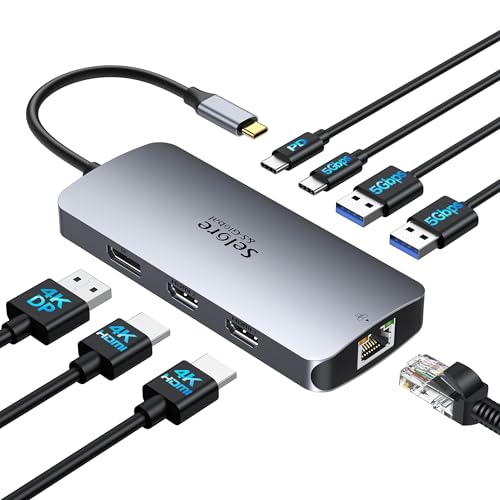
If you connect and disconnect your Dell laptop from a desk setup regularly, a docking station saves time. One cable connects your laptop to the dock, and the dock handles monitors, keyboard, mouse, Ethernet, and power. Dell makes three docking stations worth knowing about.
Dell WD19S/WD19DCS connects via USB-C and supports up to two displays. The WD19S delivers 90W of charging power and works with any Dell laptop that has a USB-C port with DisplayPort Alt Mode. The WD19DCS version bumps charging to 210W for Precision workstations. This dock suits most single or dual monitor setups.
Dell WD22TB4 connects via Thunderbolt 4 and supports up to two 4K monitors at 60Hz simultaneously. It delivers 130W of power and includes HDMI, DisplayPort, USB-A, USB-C, and Ethernet ports. This is Dell’s best dock for dual 4K displays and works with any Thunderbolt-equipped Dell laptop.
Dell D6000/D6000S is a universal dock that connects via USB-C or USB-A (using DisplayLink). It works with virtually any laptop, including older models without Thunderbolt. The trade-off is that DisplayLink uses software-based video processing, which adds some CPU overhead. This dock makes sense when you need compatibility with older laptops or non-Dell machines.
| Dock Model | Connection | Max Displays | Power Delivery | Best For |
|---|---|---|---|---|
| Dell WD19S | USB-C | 2 displays | 90W | Everyday dual monitor setups |
| Dell WD19DCS | USB-C | 2 displays | 210W | Precision workstations |
| Dell WD22TB4 | Thunderbolt 4 | 2x 4K @ 60Hz | 130W | Dual 4K monitors, best performance |
| Dell D6000S | USB-C or USB-A | 3 displays | 65W | Universal compatibility, older laptops |
How to Change Display Settings on Dell Laptop
Once your monitor is connected and detected, Windows gives you full control over how the displays behave. Right-click anywhere on your desktop and select Display settings, or go to Settings > System > Display.
Display arrangement: The Display settings page shows numbered rectangles representing each screen. Click and drag them to match the physical position of your monitors on your desk. If your external monitor is to the left of your laptop, drag the rectangle to the left. This ensures your mouse moves between screens in the right direction.
Display mode: Scroll down to “Multiple displays” and choose one of four options. “Extend these displays” gives you independent desktops on each screen – most people use this. “Duplicate these displays” mirrors the same content on both screens. You can also make either display your main screen by selecting it and checking “Make this my main display.”
Resolution: Select the external monitor in the display diagram, then scroll to “Display resolution” and pick the native resolution of your monitor. Running a 4K monitor at 1080p will look blurry. Running a 1080p monitor at 4K won’t work at all. Match the resolution to what the monitor supports.
Scaling: If text and icons look too small on a high-resolution monitor, adjust the “Scale” dropdown. 100% is native size. 125% and 150% are common choices for 4K monitors at 27 inches. Dell recommends 150% scaling for their 27-inch 4K UltraSharp displays.
Dell Laptop Not Detecting External Monitor
When you plug in a cable and nothing happens, work through these steps in order.
- Check the cable connection. Unplug both ends and reconnect them firmly. USB-C connectors in particular can feel seated when they’re slightly off. Try a different cable if you have one.
- Set the monitor input. Press the input/source button on your monitor and make sure it’s set to the correct input (HDMI 1, HDMI 2, USB-C, DisplayPort). Many monitors don’t auto-detect and sit on the wrong input.
- Press Windows key + P. Select “Extend” or “Duplicate.” If the laptop is set to “PC screen only,” it won’t send a signal to the external monitor even though the cable is connected.
- Force detection. Go to Settings > System > Display, scroll down, and click “Detect.” Windows sometimes needs a manual push to find a newly connected display.
- Update the graphics driver. Open Dell SupportAssist (pre-installed on most Dell laptops) and check for driver updates. Alternatively, go to dell.com/support, enter your Service Tag, and download the latest Intel or NVIDIA graphics driver for your model.
- Try a different port. If your Dell laptop has multiple USB-C ports, try the other one. On some models, only one USB-C port supports video output.
- Restart the laptop with the monitor connected. A restart forces Windows to re-scan for connected displays during boot, which clears many detection issues.
Dell USB-C Port Not Outputting Video to Monitor
This is one of the most common problems Dell laptop owners run into. You plug a USB-C cable into the laptop, connect it to a monitor or adapter, and nothing appears on screen. The monitor says “No Signal” or stays in sleep mode.
The most likely cause is that you’re plugging into the wrong USB-C port. On many Dell laptops, especially the Inspiron and Vostro lines, not all USB-C ports support video output. One USB-C port might handle data and charging only, while another supports DisplayPort Alt Mode for video. Check the markings next to each port. A small DisplayPort icon or Thunderbolt lightning bolt means that port supports video.
If none of the USB-C ports have a DisplayPort or Thunderbolt symbol, your laptop’s USB-C ports may not support video output at all. This is common on budget Inspiron models. In that case, use the HDMI port instead.
Another cause is a missing driver. Thunderbolt connections specifically require the Intel Thunderbolt controller driver. Open Dell SupportAssist and run a full driver scan, or download the Thunderbolt driver from dell.com/support for your model.
Monitor Flickering When Connected to Dell Laptop
Flickering usually points to a cable problem, a refresh rate mismatch, or a loose connection. Start with the simplest fixes first.
- Reseat the cable at both ends. A loose HDMI or USB-C connection causes intermittent signal drops that show up as flickering.
- Try a different cable. Damaged or low-quality cables are the most common cause of flickering. HDMI cables degrade over time, especially at the connector ends.
- Check the refresh rate. Go to Settings > System > Display > Advanced display settings. Make sure the refresh rate matches what your monitor supports. Setting a 60Hz monitor to 75Hz can cause flickering or a black screen.
- Update the graphics driver. Outdated Intel UHD or NVIDIA drivers sometimes cause display flickering after Windows updates. Download the latest driver from Dell’s support site.
- Disable hardware acceleration in any app that’s flickering (usually Chrome or Edge). Go to the browser’s settings, search for “hardware acceleration,” and turn it off.
External Monitor Keeps Going to Sleep With Dell Laptop
If your external monitor randomly goes black for a few seconds and comes back, or goes to sleep entirely while you’re still using the laptop, the issue is usually a power management setting or a loose cable.
First, check Windows power settings. Go to Settings > System > Power & battery > Screen and sleep, and set “When plugged in, turn off my screen after” to a reasonable time or “Never.” If you’re on battery power and the laptop goes to sleep, the monitor loses its signal.
Second, check USB-C selective suspend. Open Device Manager, expand “Universal Serial Bus controllers,” right-click your USB hub or USB-C controller, select Properties, go to the Power Management tab, and uncheck “Allow the computer to turn off this device to save power.” This prevents Windows from cutting power to the USB-C port your monitor is connected to.
Third, check the cable. A cable that’s barely connected can maintain signal most of the time but drop it when there’s any vibration or movement. Swap in a new cable to rule this out.
How to Connect Dell Laptop to Monitor FAQs
What cable do I need to connect my Dell laptop to a monitor?
It depends on your Dell model. If your laptop has an HDMI port (Inspiron, Vostro, most Precision models), a standard HDMI cable is all you need. If your laptop only has USB-C or Thunderbolt ports (XPS, some Latitude models), you need either a USB-C to HDMI adapter or a direct USB-C cable to a USB-C monitor. Check the ports on the left and right sides of your laptop before buying any cable.
Can I connect two monitors to my Dell laptop?
Yes, most Dell laptops support at least two external displays. If your laptop has both an HDMI port and a USB-C port with video output, connect one monitor to each. If your laptop only has USB-C/Thunderbolt ports, use a Thunderbolt dock like the Dell WD22TB4 to connect two monitors. The laptop’s graphics card determines the maximum number of displays – most Intel Iris Xe and Intel Arc GPUs in current Dell laptops support up to three total screens (laptop display plus two external).
Does my Dell USB-C port support video output?
Not necessarily. Look for a small DisplayPort icon (a rectangle with a line) or a Thunderbolt lightning bolt symbol next to the USB-C port on your laptop. If you see either icon, that port supports video. If there’s no icon, check your laptop’s spec sheet on dell.com/support by entering your Service Tag. Budget Dell laptops sometimes have USB-C ports that only support data transfer and charging with no video capability.
Why does my Dell laptop say “No Signal” when connected to a monitor?
The most common causes are a wrong input selection on the monitor, a loose cable, or the laptop not sending a signal. Press the input/source button on your monitor to verify it’s set to the correct HDMI or USB-C input. Then press Windows key + P on the laptop and select “Duplicate” or “Extend.” If neither helps, try a different cable – damaged cables are a frequent culprit.
Do I need a docking station for my Dell laptop?
You don’t need one for a single monitor. A direct cable connection works fine. A docking station makes sense if you connect and disconnect your laptop daily (like a desk-to-meeting workflow), need two or more monitors, or want one cable for monitors, peripherals, Ethernet, and charging all at once. The Dell WD22TB4 is the best option for Thunderbolt-equipped Dell laptops, while the WD19S covers USB-C models.
Can I use a Dell docking station with a non-Dell laptop?
Yes. Dell’s USB-C and Thunderbolt docks use universal standards and work with any laptop that has a compatible port, regardless of brand. HP, Lenovo, ASUS, and Apple MacBook laptops all work with the Dell WD22TB4 and WD19S. The docks ship with Dell-optimized drivers, but they function out of the box with any USB-C or Thunderbolt laptop.
Sources
MacBook Air user? Check our MacBook Air dual monitor guide.
For a complete walkthrough on multi-monitor setups, see our triple monitor setup guide.
Dell Support – How to Connect a Monitor to a Dell Computer | Dell Support – How to Troubleshoot Display or Video Issues