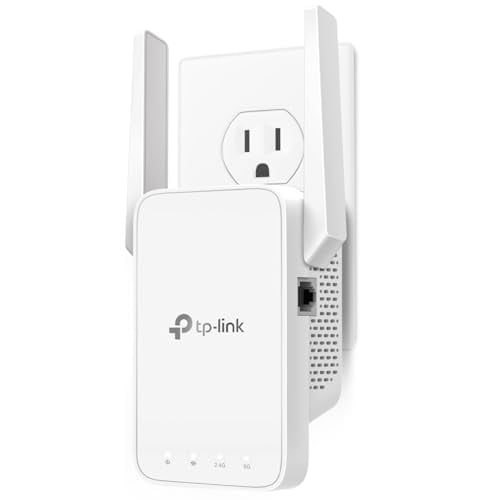
“Wi-Fi extender” and “Wi-Fi booster” are really just marketing labels, not technical categories. Most manufacturers slap both terms on the same product box. A TP-Link “range extender” and a Netgear “Wi-Fi booster” do the exact same thing. They pick up your router’s wireless signal and rebroadcast it to cover more area.
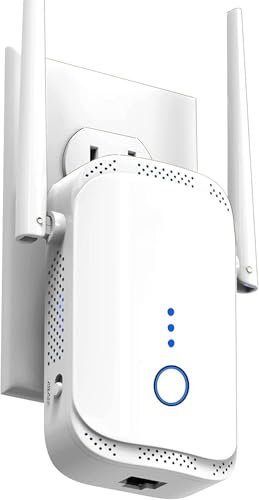
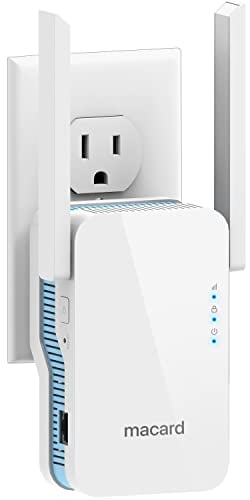
The real differences come down to how these devices connect to your router and how they handle your network traffic. A simple repeater cuts your speed in half. A dual-band extender avoids that problem. A mesh system does it even better. Understanding those distinctions matters way more than whether the label says “extender” or “booster.”
What Is the Difference Between a Wi-Fi Extender and a Wi-Fi Booster
There isn’t one, really. The Wi-Fi industry doesn’t have official definitions that separate “extender” from “booster.” Both terms describe a device that takes your existing Wi-Fi signal and rebroadcasts it to reach areas your router can’t cover on its own.
For Netgear options, check our best Netgear WiFi extenders.
Some manufacturers use “booster” for devices that amplify signal strength, and “extender” for devices that create a second network. Others use both words for the exact same product. You’ll even find devices labeled as “Wi-Fi booster/extender/repeater” all at once.
What actually matters is the technology inside the device. There are four main types of Wi-Fi coverage solutions, and they work very differently from each other even though they all get called “extenders” or “boosters” at some point.
Wi-Fi Repeater vs Extender vs Mesh: How Each One Works
Wi-Fi repeaters are the simplest and cheapest option. A repeater connects to your router wirelessly, then rebroadcasts the signal on the same channel and frequency band. Think of it like a person standing in a hallway, hearing someone shout from the living room, and shouting the same message toward the bedroom. The message gets there, but the hallway person can only listen or shout, not both at the same time.
That’s the main problem with repeaters. Because they receive and transmit on the same radio and same channel, they cut your available bandwidth roughly in half. If your router delivers 300 Mbps, a repeater gives connected devices about 150 Mbps at best. They also create a second network name (like “HomeWiFi_EXT”), so your phone won’t switch between them automatically.
Dual-band Wi-Fi extenders solve the speed problem. These devices have two radios. One connects to your router on one band (say 5 GHz), while the other broadcasts to your devices on the other band (2.4 GHz), or vice versa. Because the two conversations happen on separate frequencies, you don’t lose half your speed. Some tri-band extenders dedicate an entire band just for the backhaul connection to the router, keeping both user-facing bands at full speed.
Mesh Wi-Fi systems take this further. A mesh system replaces your router entirely with two or three nodes that all share the same network name and password. Your devices see one unified network. As you walk from the kitchen to the garage, your phone switches from one node to another without dropping the connection. Mesh nodes communicate with each other over a dedicated backhaul channel, so you don’t lose speed.
Powerline Wi-Fi extenders use your home’s electrical wiring as a network cable. You plug one adapter into an outlet near your router and connect it with Ethernet. You plug a second adapter into an outlet in the dead zone, and it broadcasts Wi-Fi from there. The signal travels through your electrical wiring instead of through the air, so walls and distance don’t matter as much. Speed depends on the age and quality of your home’s wiring.
| Device Type | How It Connects to Router | Speed Impact | Separate Network Name | Price Range |
|---|---|---|---|---|
| Wi-Fi Repeater | Wireless (same band/channel) | Cuts speed by ~50% | Yes (usually) | $15 – $40 |
| Dual-Band Extender | Wireless (dedicated band for backhaul) | Minimal speed loss | Usually yes, some support same SSID | $30 – $80 |
| Tri-Band Extender | Wireless (dedicated backhaul band) | Minimal speed loss | Usually yes | $80 – $150 |
| Mesh Wi-Fi System | Wireless or wired (dedicated backhaul) | Little to no speed loss | No, one unified network | $150 – $400 (2-3 pack) |
| Powerline Wi-Fi Extender | Electrical wiring + Ethernet | Depends on home wiring quality | Yes | $50 – $120 |
| MoCA Adapter | Coaxial cable + Ethernet | Minimal, wired connection | Needs separate access point | $90 – $170 (pair) |
Does a Wi-Fi Extender Slow Down Your Internet
It depends on the type. A single-band repeater will cut your speed roughly in half because it uses one radio for both receiving and sending. This is the most common complaint about cheap Wi-Fi extenders. People buy a $20 plug-in repeater expecting full speed everywhere, then wonder why Netflix buffers in the bedroom even though the signal shows full bars.
Full signal bars don’t mean full speed. The extender might show a strong connection to your device while only delivering a fraction of your router’s bandwidth. That’s because the extender spends half its time talking to the router and the other half talking to your device.
Looking for more? We have a dedicated guide on WiFi router for gaming.
Dual-band and tri-band extenders avoid this by using separate radios for the router connection and the device connection. A good dual-band extender typically delivers 60-80% of your router’s speed. A mesh system can deliver 80-95% or better, especially with a wired backhaul between nodes.
Placement matters too. An extender placed too far from the router will receive a weak signal and rebroadcast a weak signal. The sweet spot is halfway between your router and the dead zone, somewhere the extender still gets a strong connection from the router.
Where to Place a Wi-Fi Extender for Best Performance
The biggest mistake people make is putting the extender in the dead zone itself. If your phone can’t get Wi-Fi in the back bedroom, sticking the extender in that bedroom won’t help. The extender needs a strong connection to your router first. Then it can push that signal into the dead zone.
Put the extender roughly halfway between your router and the area with weak coverage. It should be in a spot where your phone still shows at least two or three signal bars from the main router. Hallways work well. Open doorways between rooms work well. Avoid placing it inside closets, behind furniture, or near microwaves and baby monitors.
Height matters too. Wi-Fi signals spread outward and slightly downward from the antenna. An extender at outlet height (about 1 foot off the floor) performs worse than one plugged into a higher outlet or set on a shelf. Some extenders come with desktop stands or wall-mount brackets for this reason.
Most extender apps and indicator lights tell you whether the placement is good. TP-Link extenders use a signal light that turns blue for a good connection and red for poor. Netgear extenders show green or amber. Test the placement before permanently mounting anything.
Wi-Fi Extender vs Mesh: Which One Should You Get
For most homes under 2,000 square feet with one or two dead spots, a dual-band Wi-Fi extender is the practical choice. It costs $30-80, sets up in minutes, and eliminates the dead zone without replacing your existing router. If your router works fine in most of the house and you just need to reach the garage, a guest house, or a back room, an extender is enough.
For larger homes, multi-story houses, or homes with more than two or three dead zones, a mesh system is the better investment. A mesh system with two or three nodes covers 3,000-5,500 square feet with a single unified network. Your devices roam between nodes automatically. You don’t end up with “HomeWiFi” and “HomeWiFi_EXT” as separate networks that your phone refuses to switch between.
Mesh systems also handle lots of devices better. If you’ve got 30 or more connected devices (smart bulbs, cameras, tablets, laptops, phones, smart speakers, a gaming console, a smart TV), a mesh system distributes those connections across multiple nodes instead of overloading one router.
| Scenario | Best Solution | Why |
|---|---|---|
| One dead spot in a small home | Dual-band extender | Cheapest fix, easy setup, no need to replace router |
| Entire house has weak Wi-Fi | Mesh system (2-3 nodes) | Full coverage, smooth roaming, replaces aging router |
| Dead spot far from router (thick walls) | Powerline extender or MoCA adapter | Signal travels through wiring, walls don’t block it |
| Large house (3,000+ sq ft) | Mesh system or wired access points | Multiple nodes provide consistent coverage everywhere |
| Apartment with one weak room | Plug-in repeater or dual-band extender | Inexpensive, simple, covers a small gap |
| Gaming or video calls in dead zone | Extender with Ethernet port or MoCA | Wired connection to device eliminates wireless latency |
| 30+ smart devices throughout home | Mesh system | Distributes device load across nodes, better device management |
Do Wi-Fi Extenders Work with Any Router
Yes, with a few caveats. Any standard Wi-Fi extender works with any router regardless of brand. You can use a TP-Link extender with a Netgear router, or a Netgear extender with an Asus router. They all communicate using the same Wi-Fi standards (802.11ac, Wi-Fi 6, etc.), so brand matching isn’t necessary.
The caveat is Wi-Fi standard compatibility. A Wi-Fi 5 (802.11ac) extender will work with a Wi-Fi 6 router, but it won’t support Wi-Fi 6 speeds. It falls back to the highest standard both devices share. For best performance, match the Wi-Fi standard of your extender to your router. If you have a Wi-Fi 6 router, get a Wi-Fi 6 extender.
We also cover WiFi router for large home in a separate article worth checking out.
Band compatibility matters too. If your router is dual-band (2.4 GHz + 5 GHz), get a dual-band extender. A single-band extender connected to a dual-band router will only extend one frequency, leaving you with partial coverage. Tri-band extenders are the most flexible but cost more.
Mesh systems are the exception to brand independence. Mesh nodes only work with other nodes from the same system. You can’t mix a Google Nest Wifi node with an Eero node. If you choose mesh, you’re committing to that brand’s ecosystem.
How to Set Up a Wi-Fi Extender
- Most modern extenders use a phone app for setup. Plug the extender into an outlet near your router (you’ll move it later). Open the manufacturer’s app (TP-Link Tether, Netgear Nighthawk, Linksys, or whatever brand you bought). The app walks you through selecting your home network and entering the password.
- If the extender doesn’t have an app, it uses WPS (Wi-Fi Protected Setup). Press the WPS button on your router, then press the WPS button on the extender within two minutes. The two devices pair automatically. This takes about 30 seconds and requires no password entry.
- After pairing, unplug the extender and move it to the halfway point between your router and the dead zone. Plug it back in, wait two minutes for it to reconnect, and check the signal indicator. If the indicator shows a strong connection to the router, you’re good. If it shows weak, move the extender closer to the router.
Some extenders support access point mode. In this mode, you connect the extender to your router with an Ethernet cable instead of wirelessly. Access point mode gives you the best speed because the backhaul connection is wired. This works well if you have Ethernet wiring in your walls or can run a cable from your router to the extender location.
Best Wi-Fi Extenders and Mesh Systems by Budget
Under $40, TP-Link RE315: A dual-band AC1200 extender that avoids the speed-halving problem of cheap repeaters. Supports the TP-Link Tether app for easy setup. Good for apartments and small homes with one dead spot. Not ideal for streaming 4K video, but handles web browsing, email, and standard-definition streaming fine.
$40-80, TP-Link RE605X: Wi-Fi 6 dual-band extender with AX1800 speeds. Supports OneMesh, which means it can work with compatible TP-Link routers to create a mesh-like unified network without buying a full mesh system. Has a Gigabit Ethernet port for wiring a desktop computer or game console directly.
$80-150, Netgear EAX15: Wi-Fi 6 four-stream extender with AX1800 speeds. Works with any router brand. Creates a unified mesh network when paired with a compatible Netgear router. Four Gigabit Ethernet ports for wired devices. Good for medium to large homes.
$150-300, Eero 6+ (2-pack): A true mesh system that replaces your existing router. Covers up to 3,000 square feet. Simple app-based setup. Includes a built-in Zigbee hub for smart home devices. Parental controls and ad blocking available through an Eero Plus subscription. Best value mesh system for most households.
$300+, Netgear Orbi RBK863S (3-pack): Tri-band Wi-Fi 6E mesh system covering up to 8,000 square feet. The dedicated 6 GHz backhaul band means zero speed loss between nodes. Supports 100+ devices simultaneously. The top-tier option for large homes, home offices, and people with dozens of smart devices.
Wi-Fi Extender vs Booster FAQs
Is a Wi-Fi booster the same as a Wi-Fi extender?
In practice, yes. The Wi-Fi industry uses “booster,” “extender,” and “repeater” interchangeably. There’s no official technical standard that separates one from the other. When shopping, ignore the label and focus on the specs: look for dual-band or tri-band support, the Wi-Fi standard (Wi-Fi 5, 6, or 6E), the number of Ethernet ports, and whether it supports mesh networking with your router.
Will a Wi-Fi extender improve my internet speed?
An extender won’t make your internet faster than what your ISP provides. If you pay for 100 Mbps, an extender can’t give you 200 Mbps. What it can do is deliver more of that 100 Mbps to areas that currently get less due to distance or walls. If you’re getting 10 Mbps in the back bedroom because of weak signal, a good extender can bring that up to 60-80 Mbps by improving the connection quality.
How many Wi-Fi extenders can I use in my house?
You can use multiple extenders, but daisy-chaining them (one extender connecting to another extender) degrades speed with each hop. Two extenders connected directly to the router is fine. If you need more than two extenders, a mesh system is a better solution because mesh nodes are designed to work together without stacking speed losses.
Do Wi-Fi extenders cause lag for gaming?
Standard repeaters add latency because the signal makes an extra hop. This can add 5-15ms of lag, which is noticeable in competitive online games. Dual-band extenders and mesh systems add less latency (2-5ms). For gaming, the best option is an extender with an Ethernet port so you can wire your console or PC directly to the extender, cutting out wireless latency entirely.
Should I get a Wi-Fi 6 extender or is Wi-Fi 5 enough?
If your router is Wi-Fi 6 (802.11ax), get a Wi-Fi 6 extender to take advantage of the improved speed and device handling. If your router is Wi-Fi 5 (802.11ac), a Wi-Fi 5 extender will work just as well and cost less. The extender can only be as fast as the router it connects to, so a Wi-Fi 6 extender on a Wi-Fi 5 router gives you no benefit. Check your router’s spec sticker before buying.
Can I use a Wi-Fi extender with my ISP’s rental router?
Getting the most out of your WiFi also depends on your internet plan. Check which providers and speeds are available at your address.
Using Arlo? See our Arlo and WiFi extender connection guide.
Our Netgear WiFi extender setup guide covers installation, placement tips, and troubleshooting.
Yes. ISP-provided routers from Xfinity, Spectrum, AT&T, Verizon, Cox, and others all work with third-party extenders. The extender connects to the router’s Wi-Fi signal like any other device. You don’t need to change any settings on the ISP router. The only exception is if your ISP’s router has Wi-Fi disabled (some fiber installations use a separate access point). In that case, you’ll need to enable Wi-Fi on the router first or connect the extender via Ethernet in access point mode.