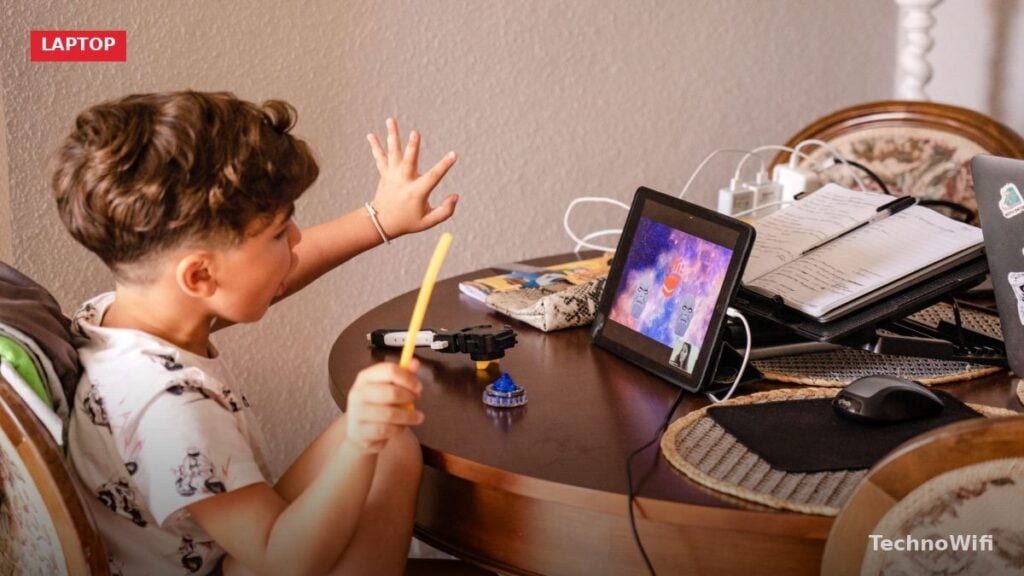
Finding the right computer for an autistic child takes more thought than a typical laptop purchase. Standard “best laptop for kids” lists rarely address what actually matters for children on the autism spectrum. Sensory preferences, motor skill differences, communication needs, and the way a child interacts with a screen all factor into which device works best.
The good news is that in 2026, accessibility features built into Chrome OS, iPadOS, and Windows have improved dramatically. Devices that were once frustrating for neurodivergent users now ship with tools specifically designed to reduce sensory overload, simplify navigation, and support alternative communication. This guide covers the features that matter most, compares the three main device types, recommends specific models by age, and walks through setup tips that make a real difference.

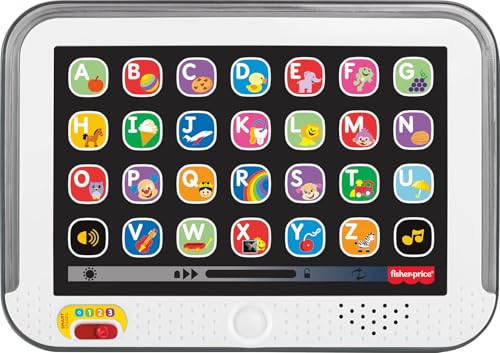
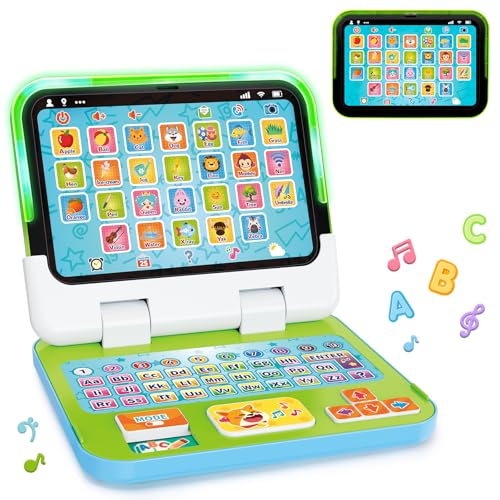
What features matter in a computer for a child with autism
Not every autistic child has the same needs. Some kids thrive with a touchscreen because tapping feels more intuitive than using a trackpad. Others prefer a physical keyboard because it provides consistent tactile feedback. Start by observing how your child already interacts with screens and build from there.
That said, certain features consistently make a positive difference across a wide range of needs.
Touchscreen. Many autistic children find touchscreens easier to use than a mouse or trackpad. Direct interaction with on-screen elements removes the abstraction of moving a pointer. For younger kids and those who use communication apps like Proloquo2Go or TouchChat, a touchscreen is practically essential.
Durability. Kids drop things. Autistic children who stim by tapping, pressing, or squeezing may put extra physical stress on a device. Look for reinforced hinges, spill-resistant keyboards, and rubber bumpers. Chromebooks designed for education (like the Lenovo 500e or ASUS Chromebook Flip CR1) are built to survive exactly this kind of daily use.
Simple interface. A cluttered desktop with dozens of icons can be overwhelming. Chrome OS is the cleanest of the three major operating systems out of the box. iPadOS is clean and intuitive as well. Windows is the most visually complex, though its Focus mode and simplified Start menu in Windows 11 help significantly.
Best accessibility settings for autistic children on laptops and tablets
Display and sensory settings. Bright white screens and sudden animations can cause discomfort or distraction. Every major OS now lets you reduce motion effects, apply color filters, enable dark mode, and adjust screen brightness on a schedule. These are not luxury features. For a child who is light-sensitive, they determine whether the device gets used or sits in a drawer.
Audio controls. Mono audio combines left and right channels so kids who use one earbud or who have hearing differences in one ear do not miss content. System-wide volume limits prevent sudden loud sounds from videos or apps. Both Chrome OS and iPadOS include these settings natively.
Parental controls. Google Family Link (for Chromebooks), Apple Screen Time (for iPads), and Microsoft Family Safety (for Windows) all let you limit screen time, block specific apps or websites, and approve downloads before they install. For kids who fixate on certain content or struggle with transitions, timed usage limits are genuinely helpful.
| Feature | Chrome OS | iPadOS | Windows 11 |
|---|---|---|---|
| Built-in screen reader | ChromeVox | VoiceOver | Narrator |
| Color filters | Yes | Yes | Yes |
| Reduce motion/animations | Yes | Yes | Yes |
| Mono audio | Yes | Yes | Yes |
| Switch Access (alternative input) | Yes | Yes (Switch Control) | Yes |
| Text-to-speech | Select-to-Speak | Speak Selection | Read Aloud / Narrator |
| Parental controls | Google Family Link | Apple Screen Time | Microsoft Family Safety |
| Focus/Do Not Disturb mode | Do Not Disturb | Focus modes | Focus Assist |
| Guided Access (lock to one app) | Kiosk mode (limited) | Guided Access | Assigned Access |
| Voice typing | Yes | Yes | Yes |
Are Chromebooks good for autistic kids
Chromebooks are the strongest overall choice for most autistic children, especially in the 5 to 12 age range. The operating system is simple, fast, and hard to break. There is no complex file system to navigate, no confusing system tray full of background apps, and almost no setup beyond signing in with a Google account.
Chrome OS boots in under 10 seconds. Apps install from the Google Play Store with one tap. Parental controls through Google Family Link are thorough and easy to configure from a parent’s phone. If something goes wrong, a Powerwash (factory reset) takes about two minutes and restores everything to a clean state.
Education-focused Chromebooks are built tough. Models like the Lenovo 500e Gen 4, Acer Chromebook Spin 512, and ASUS Chromebook Flip CR1 feature rubber bumpers, spill-resistant keyboards, reinforced ports, and MIL-STD-810H drop resistance. These are the same machines that survive daily use in elementary school classrooms.
The main limitation is software compatibility. Chromebooks cannot run traditional Windows programs, which means some specialized therapy or education software is not available. If your child’s speech therapist or occupational therapist recommends specific Windows-only software, a Chromebook will not work for that purpose. Most modern therapy apps, however, have web-based or Android versions that run fine on Chrome OS.
Should I get an iPad instead of a laptop for my autistic child
iPads have a unique advantage: Guided Access. This Apple feature locks the device to a single app and lets you disable specific areas of the screen. For a child who needs to stay focused on a communication app or educational program without accidentally swiping away to YouTube, Guided Access is invaluable. No other platform does this as well.
The iPad app ecosystem for autism support is also the largest. Apps like Proloquo2Go, TouchChat HD, LAMP Words for Life, and AutiSpark were designed specifically for iPad. Many speech-language pathologists recommend iPads precisely because of these apps.
iPads work best for children ages 3 through 10 who primarily need a device for communication, structured learning apps, and supervised entertainment. The touchscreen-only interface is intuitive for younger children, and the lack of a keyboard simplifies the experience.
The downsides are cost and durability. An iPad Air or iPad (10th generation) with a protective case runs $350 to $700 depending on the model and storage. iPads are glass-front devices that crack when dropped on hard surfaces. A heavy-duty case like the OtterBox Defender is essential, not optional.
iPads also become limiting as a child gets older. Typing assignments, research projects, and schoolwork that requires multiple windows open simultaneously are awkward on an iPad. For children over 10 who need a device for both schoolwork and daily use, a Chromebook or Windows laptop is more practical.
When does a Windows laptop make sense for an autistic child
Windows laptops are the most flexible option but also the most complex. They run every piece of software, including specialized therapy programs, educational tools, and mainstream applications. If your child uses a specific program that only runs on Windows, the decision is made for you.
Windows 11 has improved its accessibility features considerably. The Accessibility panel in Settings now groups all relevant options in one place: color filters, text scaling, narrator, voice typing, eye control, and more. Focus Assist reduces notifications during specific hours or activities, which helps kids who get distracted or anxious when pop-ups appear.
The complexity of Windows is the primary concern. Desktop icons, taskbar notifications, system updates, and file management dialogs can overwhelm a child who does better with a simple, predictable interface. Parents often need to spend time customizing the desktop, removing shortcuts, and configuring Focus mode before handing the laptop to their child.
We walk through how to connect 2 monitors to Chromebook step by step in a separate post.
Windows laptops make the most sense for autistic children ages 10 and up who need full software compatibility for school, who are comfortable with a more complex interface, or who have specific software requirements from therapists or educators.
Chromebook vs iPad vs Windows laptop for kids with autism
| Factor | Chromebook | iPad | Windows Laptop |
|---|---|---|---|
| Interface simplicity | Very simple | Simple | Complex (customizable) |
| Touchscreen availability | Most education models | All models | Select models only |
| Durability (education models) | Excellent | Fragile without case | Varies by model |
| Communication app support | Good (Android apps) | Best (largest library) | Limited selection |
| Parental controls | Google Family Link | Apple Screen Time | Microsoft Family Safety |
| Lock to single app | Kiosk mode (limited) | Guided Access (excellent) | Assigned Access |
| Price range | $150 to $450 | $329 to $799 | $300 to $1,000+ |
| Best age range | 5 to 14 | 3 to 10 | 10 and up |
| Keyboard included | Yes | No (sold separately) | Yes |
| School compatibility | Excellent (most schools use Chrome OS) | Good | Good |
Best computers for autistic children ages 3 to 6
For the youngest children, an iPad is usually the best fit. The touch-first interface requires no keyboard skills, no trackpad coordination, and no understanding of file systems. A child can open an app by tapping its icon and interact with it immediately.
The iPad 10th Generation ($329 to $449) is our top recommendation for this age group. It has a 10.9-inch screen, USB-C charging, and enough power to run every communication and learning app available. Pair it with a rugged case that has a built-in handle and screen protector.
If your child’s therapist uses Proloquo2Go or another iOS-specific communication app, the iPad is the only device that will work. These apps do not have Android or Chrome OS versions.
For families who want a laptop-style device instead, the Lenovo Chromebook Duet 3 ($279 to $349) works as both a tablet and a laptop. The screen detaches from the keyboard, so a young child can use it as a tablet. When they grow older, the keyboard reattaches for typing. The screen is 10.9 inches, runs Chrome OS, and supports Android apps from the Google Play Store.
Best computers for kids with autism ages 7 to 12
This is the age range where Chromebooks really shine. School-age children need a device that handles Google Classroom, educational apps, video calls with therapists, and recreational use. A Chromebook covers all of these without the complexity of Windows.
The Lenovo 500e Chromebook Gen 4 ($299 to $399) is purpose-built for kids. It features a 360-degree hinge that converts between laptop and tablet modes, a 12-inch touchscreen, a garaged stylus for drawing and writing, and MIL-STD-810H durability ratings. The keyboard is spill-resistant and the rubber bumpers absorb drops from desk height.
The ASUS Chromebook Flip CR1 (CR1100) ($249 to $329) is another strong option. It has a convertible design, an 11.6-inch touchscreen, a rugged body rated for 120 cm drops, and a spill-resistant keyboard that drains liquid away from internal components. Battery life runs 10 to 12 hours, which covers a full school day without charging.
For families who need a Windows device in this age range, the Lenovo 300w Gen 4 ($349 to $449) offers similar rugged construction in a Windows 11 laptop. It has a touchscreen, garaged pen, reinforced ports, and a spill-resistant keyboard. Windows gives access to a wider range of educational and therapy software, but requires more parental setup to simplify the interface.
| Age Group | Top Pick | OS | Price Range | Key Features |
|---|---|---|---|---|
| 3 to 6 | iPad 10th Generation | iPadOS | $329 to $449 | Touchscreen tablet, Guided Access, largest communication app library |
| 3 to 6 (alt) | Lenovo Chromebook Duet 3 | Chrome OS | $279 to $349 | Detachable tablet/laptop, lightweight, Android app support |
| 7 to 12 | Lenovo 500e Chromebook Gen 4 | Chrome OS | $299 to $399 | 360-degree hinge, garaged stylus, MIL-STD-810H, spill-resistant |
| 7 to 12 (alt) | ASUS Chromebook Flip CR1 | Chrome OS | $249 to $329 | Convertible, 120 cm drop rated, 10+ hour battery |
| 7 to 12 (Windows) | Lenovo 300w Gen 4 | Windows 11 | $349 to $449 | Rugged, touchscreen, garaged pen, full Windows software support |
| 13+ | Acer Chromebook Plus Spin 714 | Chrome OS | $499 to $599 | 14-inch display, Chromebook Plus certified, convertible, USI stylus |
| 13+ (Windows) | HP Pavilion x360 14 | Windows 11 | $549 to $699 | Convertible, touchscreen, mainstream performance, pen support |
Best computers for autistic teens ages 13 and up
Teenagers need a device that handles real schoolwork: research papers, presentations, spreadsheets, and collaborative projects. They also want something that does not look like a little kid’s Chromebook. Finding a device that balances accessibility with capability and age-appropriate design matters at this stage.
The Acer Chromebook Plus Spin 714 ($499 to $599) hits this balance well. It is Chromebook Plus certified, which means at least 8 GB of RAM, 128 GB of storage, a Full HD IPS display, and an Intel Core processor. The convertible design supports both laptop and tablet modes. Chrome OS keeps things simple while still handling everything a high school student needs.
For teens who need Windows, the HP Pavilion x360 14 ($549 to $699) is a solid pick. It has a 14-inch touchscreen, a convertible hinge, and enough processing power for school applications and light creative work. Windows 11 Accessibility settings give teens control over their own sensory preferences as they learn to self-advocate.
Some autistic teens are tech-savvy and want a standard laptop without extra accommodations. Others benefit from continued use of accessibility features and a simpler interface. Let your teen take the lead in choosing what works for them. Their input matters more at this age than any product recommendation.
What communication apps work best for autistic children
Augmentative and alternative communication (AAC) apps help children who are nonverbal, minimally verbal, or who communicate more effectively with visual supports than with speech alone. These apps turn a tablet or laptop into a communication device, using picture symbols, text-to-speech, or a combination of both.
Proloquo2Go is the most widely used AAC app in 2026. It is iPad and iPhone only. The app uses a grid of picture symbols that the child taps to build sentences, which the device then speaks aloud. It costs $249.99 as a one-time purchase, which is expensive but far less than a dedicated communication device that can run $5,000 or more.
TouchChat HD with WordPower is another popular iPad AAC app. It is available through a subscription model and offers customizable vocabulary pages. Many speech-language pathologists prefer it for children who are transitioning from picture-based to text-based communication.
LAMP Words for Life uses a motor planning approach where each word always lives in the same location on the screen. This consistency helps children build muscle memory for communication. It is also iPad only.
Snap + Core First by Tobii Dynavox runs on both iPad and Windows. It is one of the few AAC solutions that works cross-platform. The app is subscription-based and is designed for beginning communicators with a core word vocabulary.
Google’s Look to Speak is a free Android app that lets a child select phrases by looking left, right, or up. It uses the front-facing camera for eye tracking and works on Chromebooks with a webcam. It is not a full AAC solution, but it provides a starting point for children who cannot use their hands to tap a screen.
| App | Platform | Pricing | Best For |
|---|---|---|---|
| Proloquo2Go | iPad / iPhone | $249.99 (one-time) | Picture-based AAC, widely supported by therapists |
| TouchChat HD | iPad | Subscription | Customizable vocabulary, transitioning to text-based AAC |
| LAMP Words for Life | iPad | $299.99 (one-time) | Motor planning approach, consistent word placement |
| Snap + Core First | iPad / Windows | Subscription | Beginning communicators, cross-platform use |
| Look to Speak | Android / Chromebook | Free | Eye-gaze controlled phrases, no hands needed |
| Avaz AAC | iPad / Android | Subscription | Affordable AAC with picture and text support |
What sensory-friendly settings should I enable on my child’s computer
Sensory-friendly settings reduce visual and auditory stimuli that can cause discomfort, distraction, or overwhelm. Most of these settings take less than five minutes to configure and can make a dramatic difference in how comfortably a child uses their device.
Reduce screen brightness. Set a comfortable brightness level and turn off auto-brightness if it changes too abruptly. On Chromebooks, you can also enable Night Light to shift the screen toward warmer tones, which reduces blue light and feels less harsh.
You might also want to read our WiFi router for gaming guide for the full picture.
Turn off animations. On iPadOS, go to Settings, then Accessibility, then Motion, and turn on Reduce Motion. For Chrome OS, go to Settings, then Accessibility, then Display, and reduce visual effects. Windows 11 users should go to Settings, then Accessibility, then Visual Effects, and turn off Animation effects. These changes stop screen elements from sliding, bouncing, or zooming, which some children find distracting or disorienting.
Apply color filters. Some autistic children are sensitive to specific colors or find certain color combinations difficult to look at. All three operating systems let you apply screen-wide color filters, including grayscale. Experiment to find what your child prefers.
Set system sounds to minimum or off. Unexpected notification sounds can be startling. Mute system sounds and set app notifications to visual-only (banners without sound) wherever possible. On Chromebooks, this is under Settings, then Notifications.
How to set up a Chromebook for a child with autism
Setting up the device before your child starts using it reduces frustration for both of you. These steps apply specifically to Chromebooks but the general approach works for any device.
- Create a Google account for your child if they do not have one. For children under 13, use Google Family Link to create a supervised account. This gives you control over app installations, screen time limits, and web filtering from your own phone.
- Sign into the Chromebook with the child’s account. Open Settings and go to Accessibility. Enable any features your child needs: Select-to-Speak for read-aloud, large cursor, screen magnifier, color filters, or mono audio.
- Turn on Night Light under Display settings and set it to stay on permanently if your child is sensitive to blue light. Reduce the brightness to a comfortable level.
- Open the notification settings and turn off all non-essential notifications. Allow only the apps your child actually uses to send alerts, and set those to silent mode if possible.
- Install only the apps your child needs. Fewer apps on the home screen means fewer distractions and less visual clutter. If your child uses specific learning apps, communication tools, or preferred entertainment apps, install those and nothing else.
- Pin the apps your child uses most to the shelf (the taskbar at the bottom of the screen). Arrange them in a consistent order. Predictability in layout helps children who rely on routine to navigate their device independently.
- If your child needs to stay in a single app without navigating away, explore Chrome OS kiosk mode or the Screen Pinning feature in Android apps. On iPad, Guided Access serves this purpose more reliably.
- Set up Google Family Link on your phone to manage screen time limits, bedtime schedules, and app approval remotely. You can lock the device remotely when it is time to stop, which removes the burden of a negotiation from the transition.
Tips for helping an autistic child adjust to a new computer
A new device is a change, and change can be difficult for children who rely on routine and predictability. A few strategies help smooth the transition.
Introduce the device during a calm, low-pressure time. Avoid first using it right before a therapy session, during a busy after-school rush, or when your child is already overstimulated. Let them explore it at their own pace without specific tasks or expectations.
Keep the setup consistent. Once you arrange the home screen and settings, do not rearrange them. If your child learns that their communication app is the first icon on the shelf, it should stay there. Predictable placement builds independence.
Use visual supports if your child responds well to them. A simple printed card with pictures showing “open laptop, tap app, do activity, close laptop” can make the process feel structured and manageable.
Noise-cancelling headphones pair well with any device. They reduce environmental noise that competes with audio from the screen. For children who are sensitive to sound, headphones help them focus on the content they are engaging with rather than the sounds happening around them.
Give your child ownership of the device where appropriate. Letting them choose the wallpaper, arrange their favorite apps, or pick a case color gives them a sense of control. Small choices like these can increase how willing a child is to engage with the device.
Frequently asked questions about computers for autistic kids
What is the best computer for a nonverbal autistic child?
An iPad is typically the best choice for a nonverbal child because it has the largest selection of AAC (augmentative and alternative communication) apps. Proloquo2Go, TouchChat HD, and LAMP Words for Life are all iPad-only applications that speech-language pathologists commonly recommend. The touchscreen interface lets a child tap picture symbols to communicate without needing keyboard or mouse skills. If you specifically need a laptop-style device, a Chromebook running Avaz AAC or Google’s Look to Speak is a workable alternative.
Is a Chromebook or an iPad better for a child with autism?
It depends on the child’s age and primary needs. An iPad is better for children ages 3 to 8 who use communication apps or who benefit from Guided Access to stay locked in a single app. A Chromebook is better for children ages 7 to 14 who need a keyboard for schoolwork, since Chromebooks are simpler than Windows, more durable than iPads, and compatible with Google Classroom. Many families find that owning both makes sense at different stages.
Are touchscreen laptops better for autistic kids?
For many autistic children, yes. Touchscreens allow direct interaction with content, which can feel more natural than using a trackpad or mouse. Children with fine motor skill differences often find tapping and swiping easier than clicking small targets with a cursor. Convertible Chromebooks that fold into tablet mode give you the best of both worlds: a touchscreen for apps and a keyboard for typing when the child is ready.
How much should I spend on a computer for my autistic child?
Plan to spend $250 to $500 for a Chromebook that will last through several school years. A basic iPad starts at $329, but cases, Apple Pencil, and communication apps can push the total to $600 or more. Windows laptops with touchscreens start around $350 for rugged education models. Spending more than $600 on a device for a child under 12 is rarely necessary unless a therapist recommends specific high-end software or hardware.
Can I get funding or insurance coverage for a computer used as a communication device?
In some cases, yes. If a speech-language pathologist prescribes an AAC device, health insurance may cover part or all of the cost. Medicaid covers dedicated AAC devices in all 50 U.S. states, though coverage for mainstream tablets with AAC apps varies by state. Organizations like the Assistive Technology Industry Association (ATIA) and state assistive technology programs can help families navigate funding options. Your child’s school district may also be required to provide an AAC device through an IEP (Individualized Education Program) if it is identified as a necessary support.
Do schools provide computers for autistic students?
Most public school districts in the U.S. provide a Chromebook or laptop to each student. If your child has an IEP or 504 Plan, the school may also provide specialized software, assistive technology, or a dedicated AAC device. Talk to your child’s special education team or assistive technology coordinator about what the district offers. Having a second device at home that mirrors the school setup (same OS, same apps, same layout) helps maintain consistency between environments.
Sources:
Google – Chromebook Accessibility Features. google.com
Apple – iPad Accessibility Features. apple.com
Microsoft – Windows Accessibility Features. microsoft.com
AssistiveWare – Proloquo2Go. assistiveware.com
Tobii Dynavox – Snap + Core First. tobiidynavox.com
Lenovo – 500e Chromebook Gen 4 Specifications. lenovo.com
ASUS – Chromebook Flip CR1 Specifications. asus.com
Google – Family Link Parental Controls. families.google.com
Autism Speaks – Assistive Technology. autismspeaks.org
ASHA – Augmentative and Alternative Communication. asha.org
TechnoWifi is reader-supported. When you buy through links on our site, we may earn an affiliate commission. Product specifications and prices are accurate as of the date of publication and may change. Always verify current details with the manufacturer or retailer before purchasing.